
How to install ClubGG on iPhone and iPad
ClubGG from the App Store, notifications and first launch on iPhone and iPad — 5 steps with screenshots.
- 1
 1
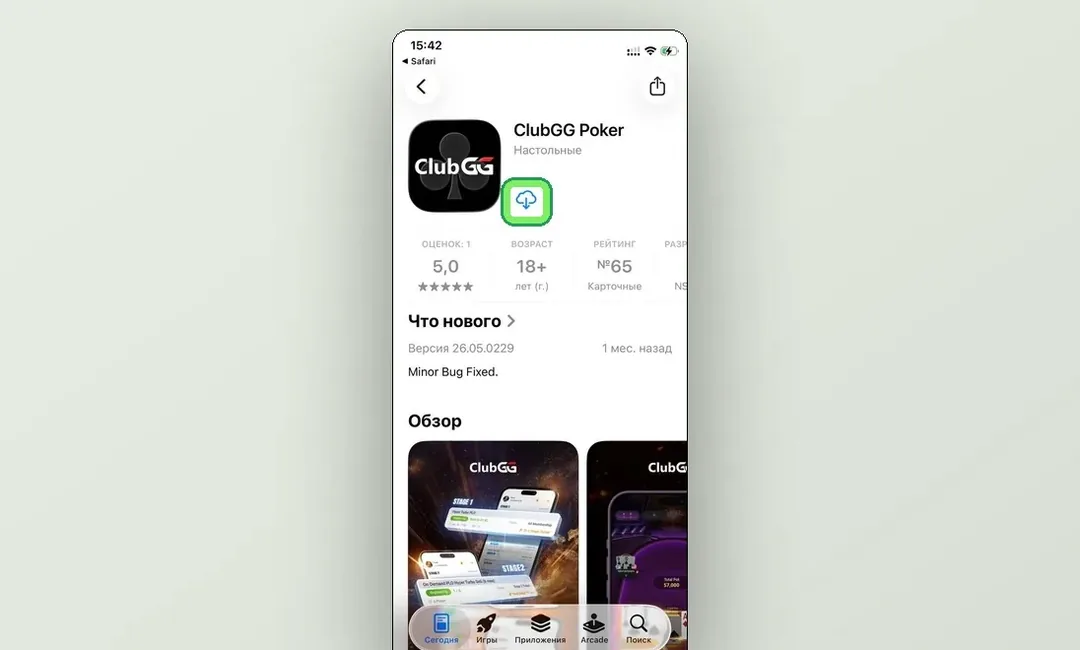
1Open ClubGG Poker on the App Store
Open the ClubGG Poker page (developer NSUS) and tap the download icon. Confirm with Face ID, Touch ID or your Apple ID password.
Open the App Store - 2
 2
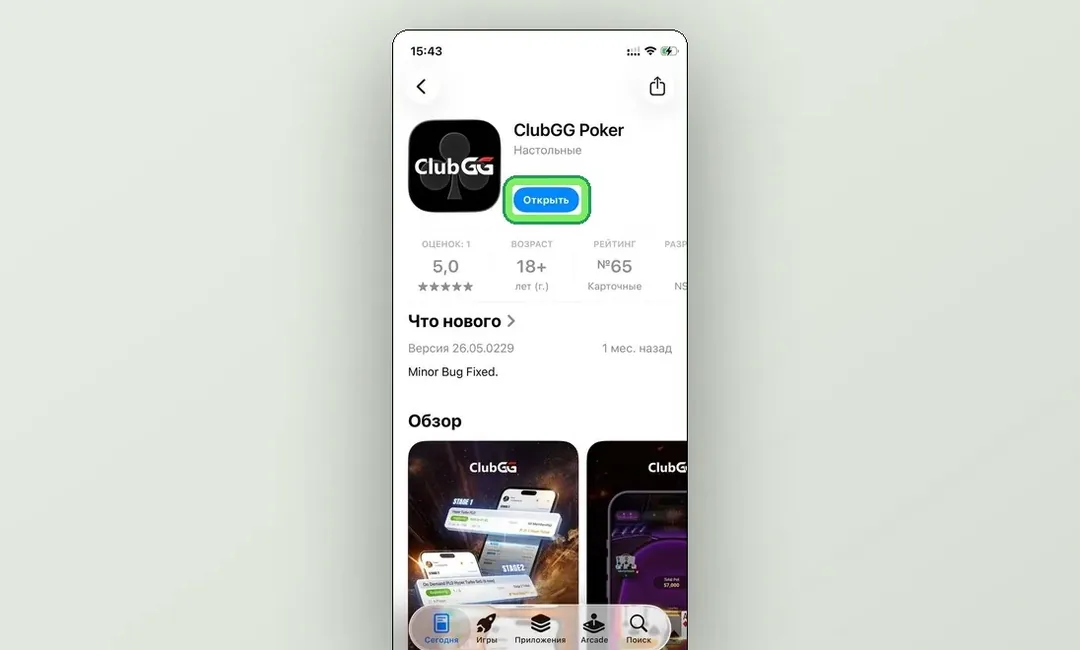
2Tap Open
When the download finishes the button changes to Open. Tap it or find ClubGG on the Home Screen.
- 3
 3
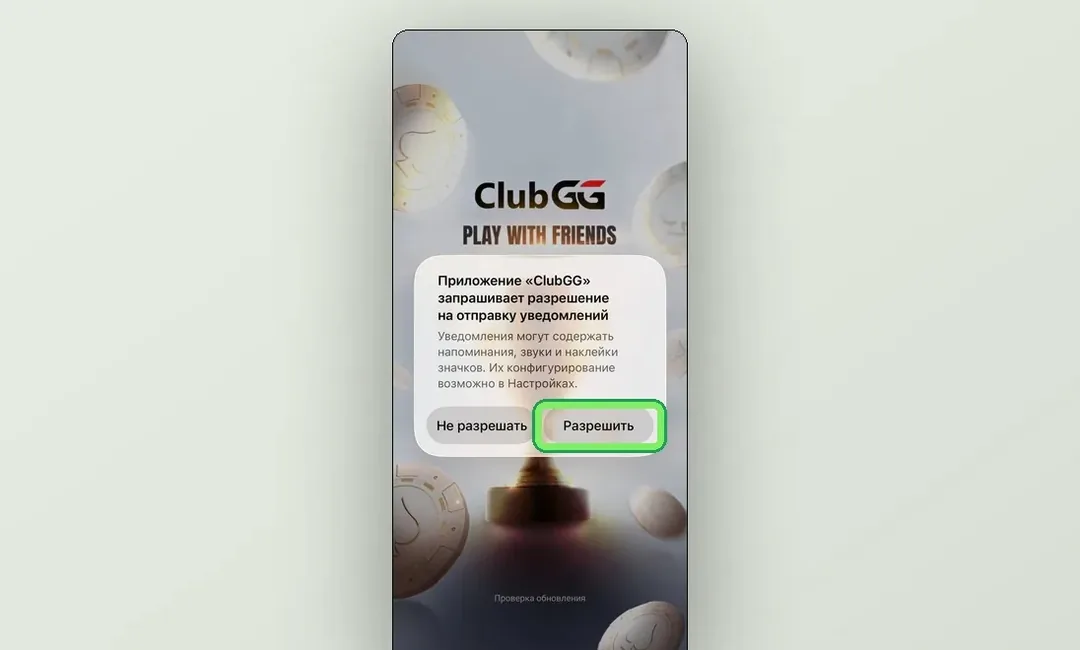
3Notifications — optional
On first launch ClubGG asks about notifications. They’re worth allowing: you’ll know when a table is ready or the agent has credited chips. Location access is only needed for clubs with a GPS restriction — if yours doesn’t require it, you can decline.
- 4
 4
4Wait for the update check
The splash screen shows “Checking for updates” at the bottom — wait a few seconds.
- 5
 5
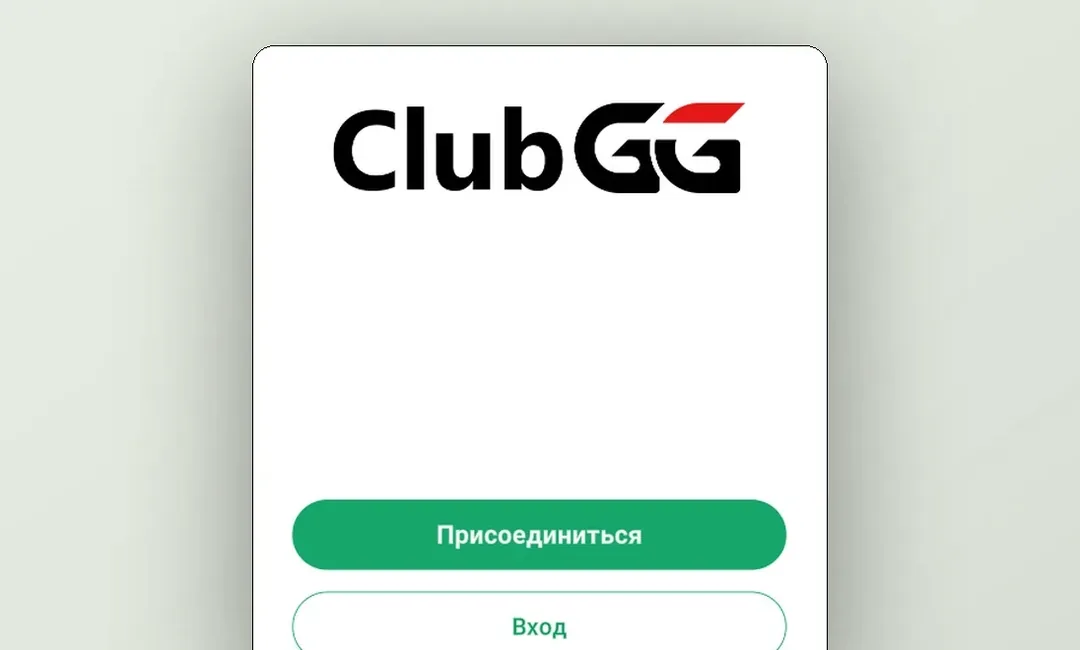
5Sign in or create an account
The ClubGG start screen opens with the Join and Log in buttons.
Next step — create an account and join a ClubGG club.