
How to install ClubGG on Windows
The installer from clubgg.com, the setup wizard and first launch of ClubGG on Windows — 8 steps with screenshots.
- 1
 1
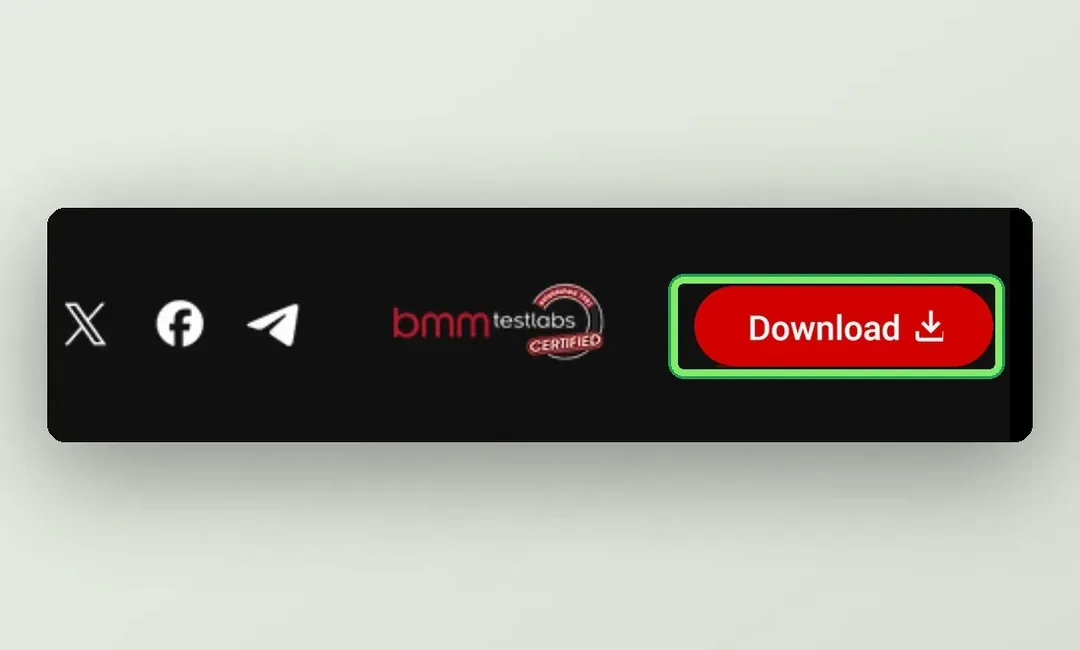
1Press Download on clubgg.com
Open clubgg.com on your computer and press the red Download button in the top-right corner. The site detects Windows and starts downloading the ClubGG installer — an .msi file of about 370 MB.
Open clubgg.com - 2
 2
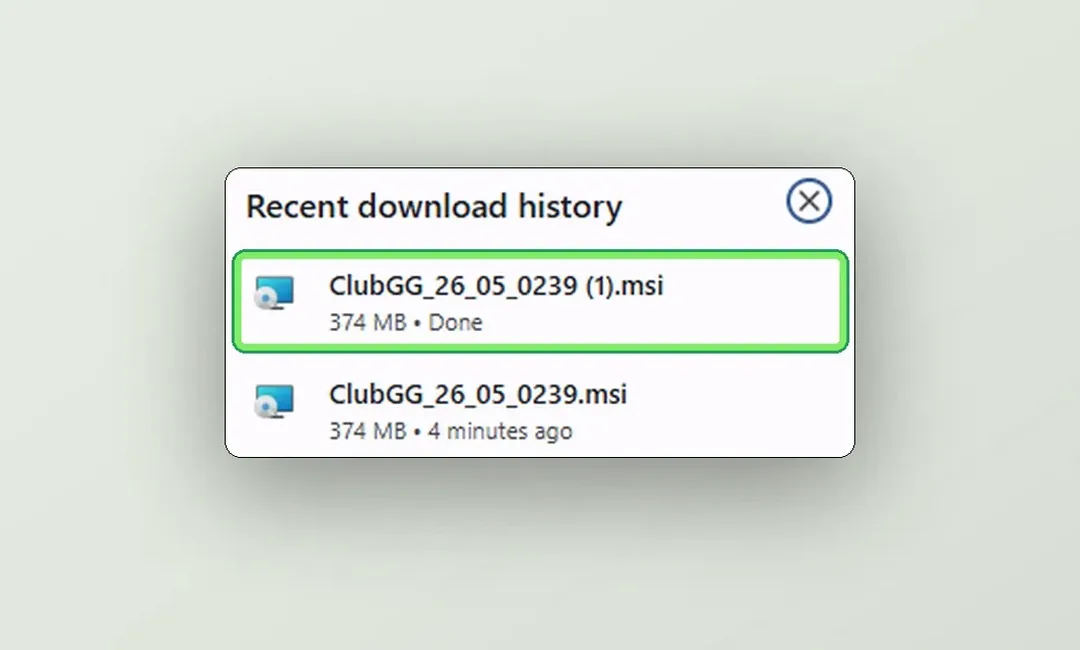
2Run the downloaded file
Open your browser downloads (Ctrl + J) and run the ClubGG_….msi file.
- 3
 3
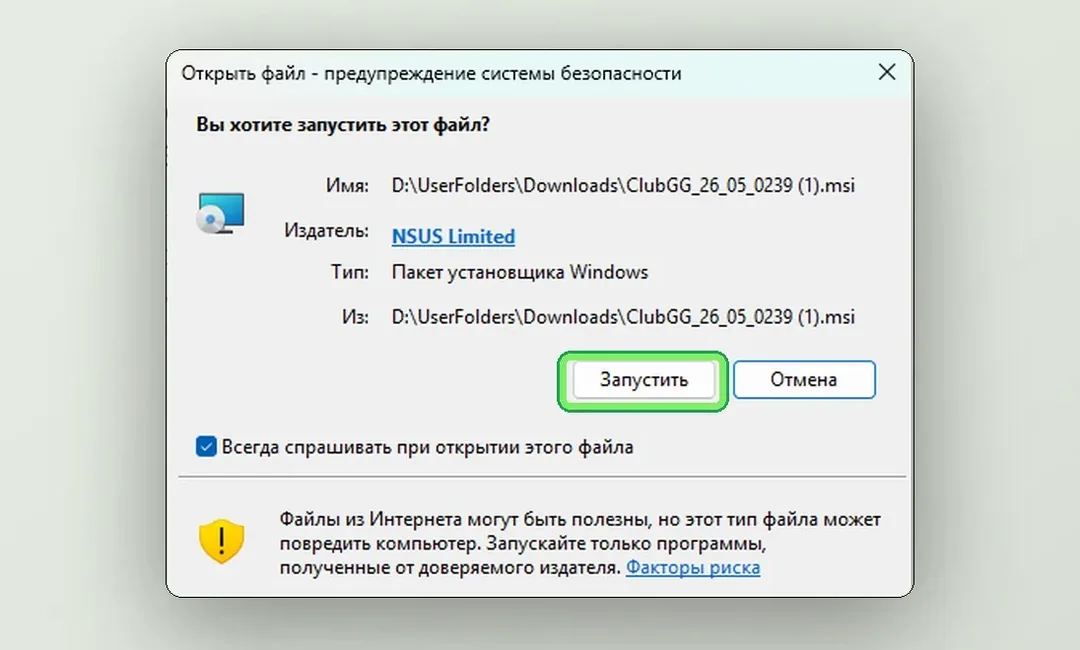
3Allow it to run
Windows asks whether to run a file from the internet. Check the publisher — NSUS Limited, the developer of ClubGG and GGPoker — and click Run.
- 4
 4
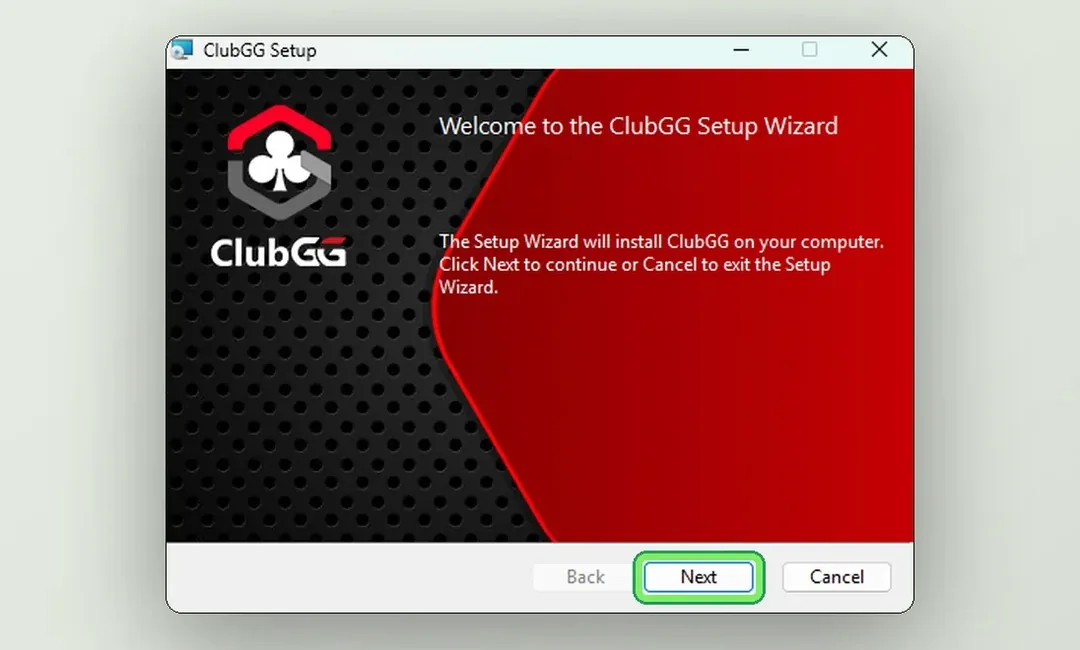
4Setup wizard — Next
The ClubGG Setup Wizard opens. Click Next.
- 5
 5
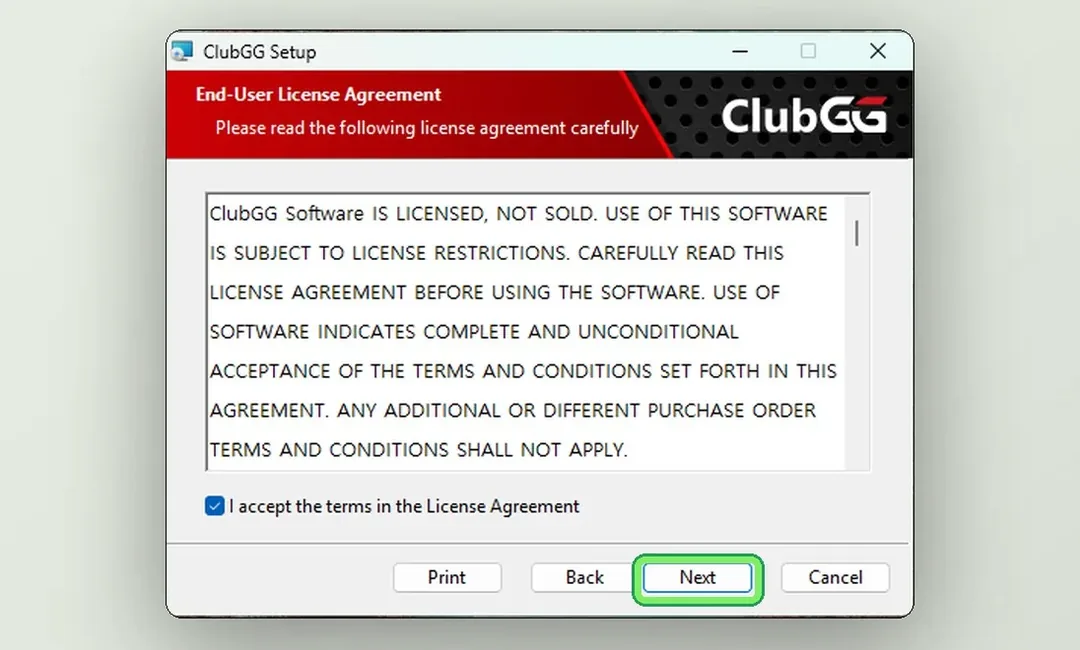
5Accept the license agreement
Tick “I accept the terms in the License Agreement” and click Next again.
- 6
 6
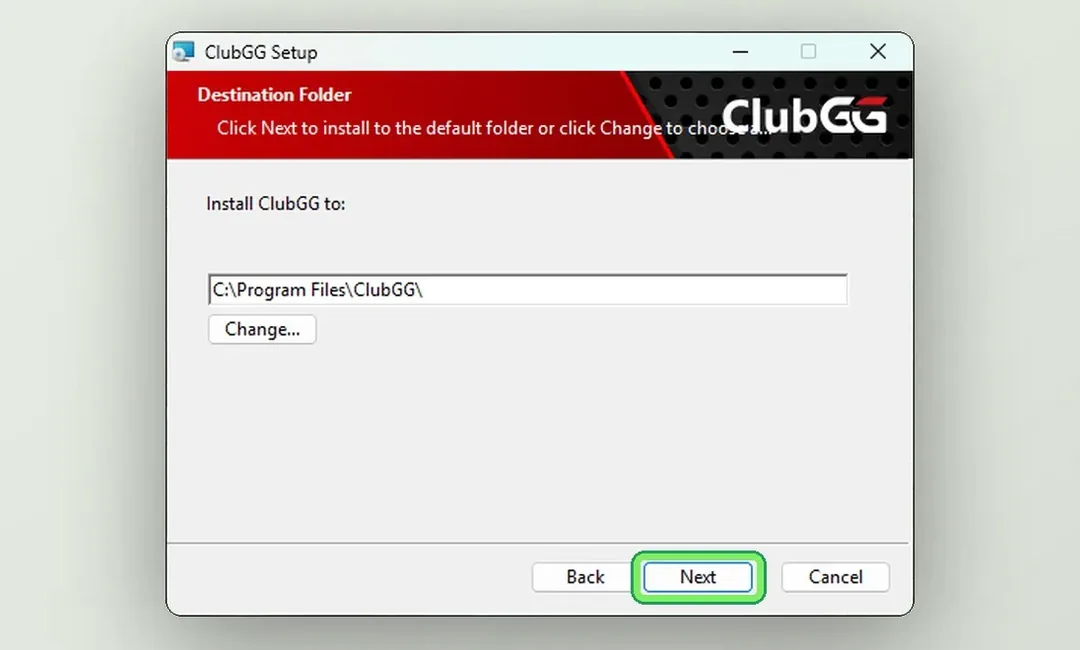
6Keep the default folder
C:\Program Files\ClubGG\ is fine — the client updates smoothly from there. Click Next.
- 7
 7
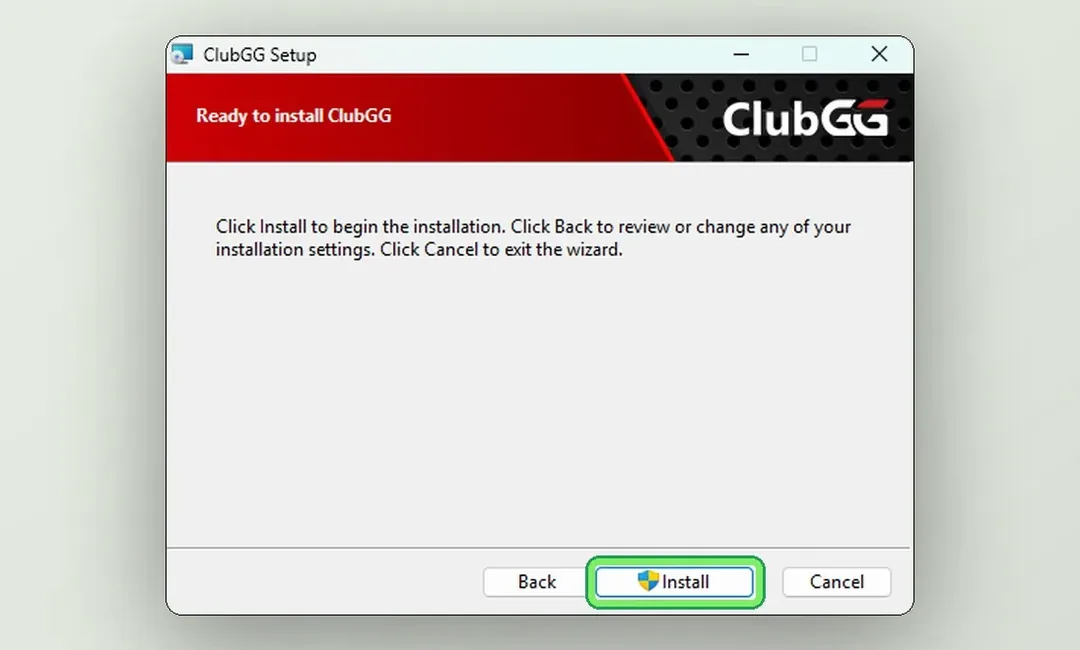
7Click Install
Click Install and wait a minute. If Windows asks whether the app may make changes, click Yes.
- 8
 8
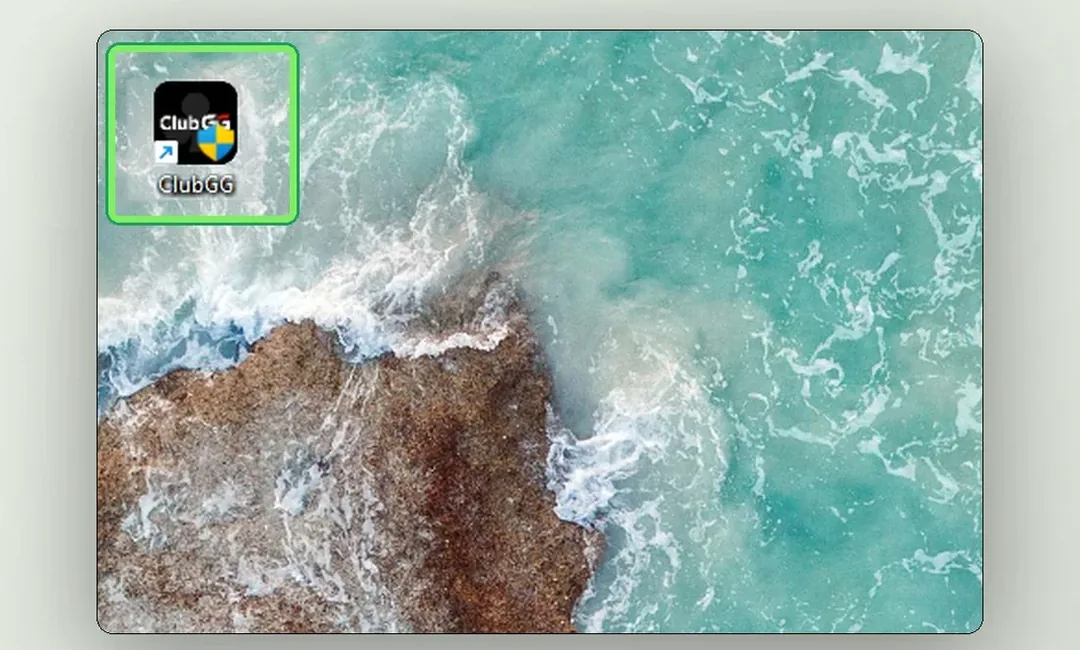
8Launch ClubGG from the desktop
A ClubGG shortcut appears on the desktop. Open it and sign in with GGPass or create a new account.
Next step — create an account and join a ClubGG club.