
How to install ClubGG on Mac
The .dmg image, moving to Applications and first launch of ClubGG on a Mac — 6 steps with screenshots.
- 1
 1
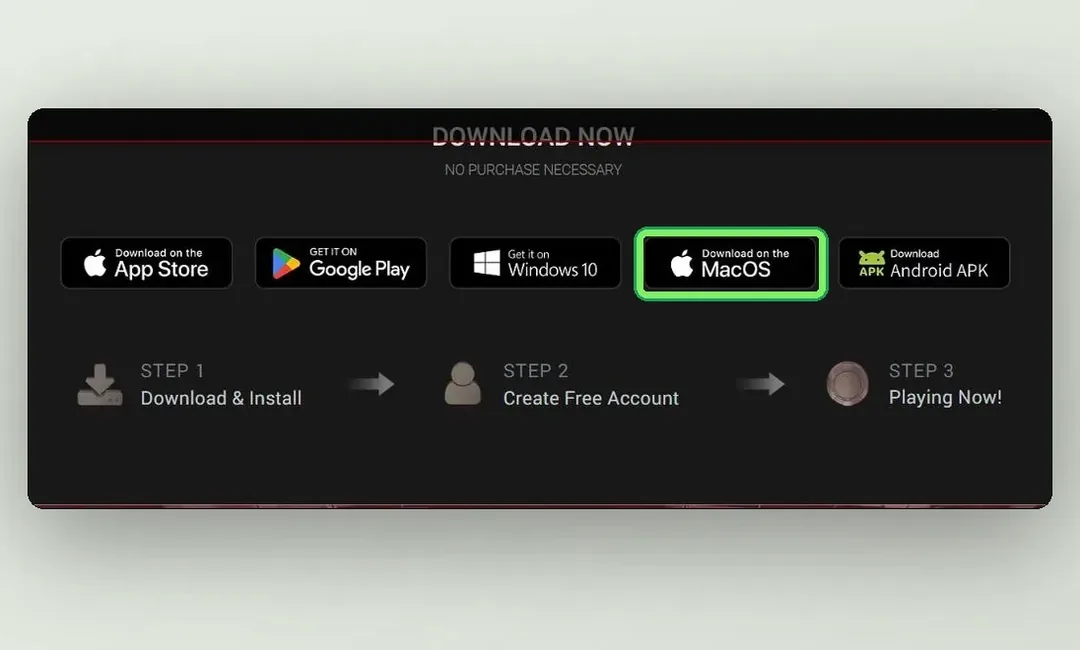
1Download the macOS image
On clubgg.com scroll to Download Now and press “Download on the MacOS” — the ClubGG….dmg file downloads.
Open clubgg.com - 2
 2
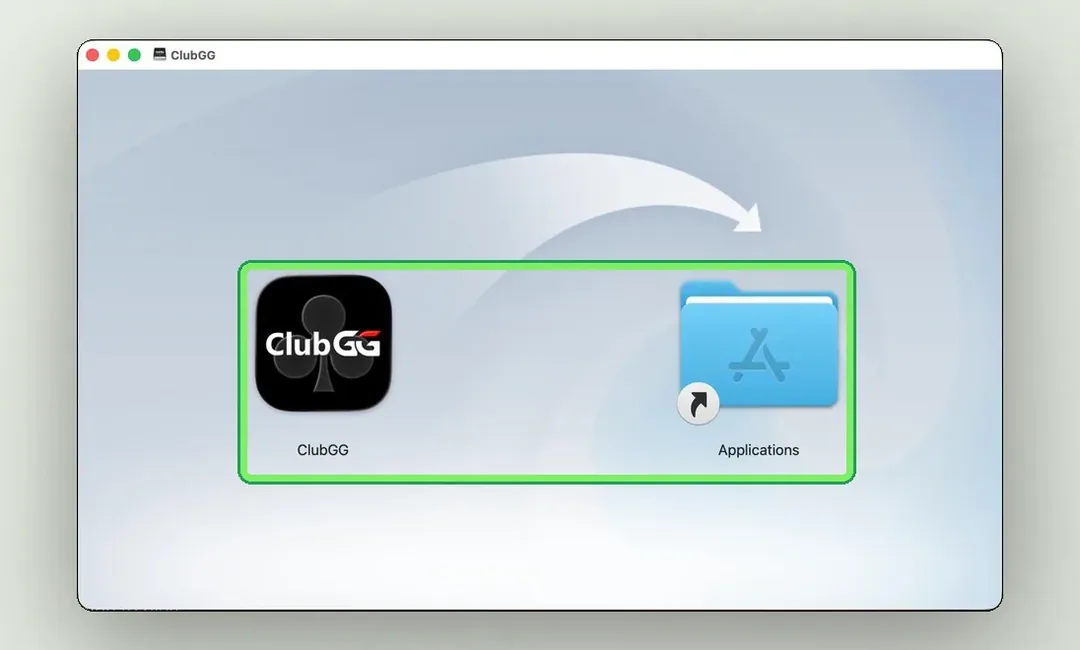
2Drag ClubGG to Applications
Open the downloaded .dmg — a window with the ClubGG icon and the Applications folder appears. Drag the icon onto the folder along the arrow.
- 3
 3
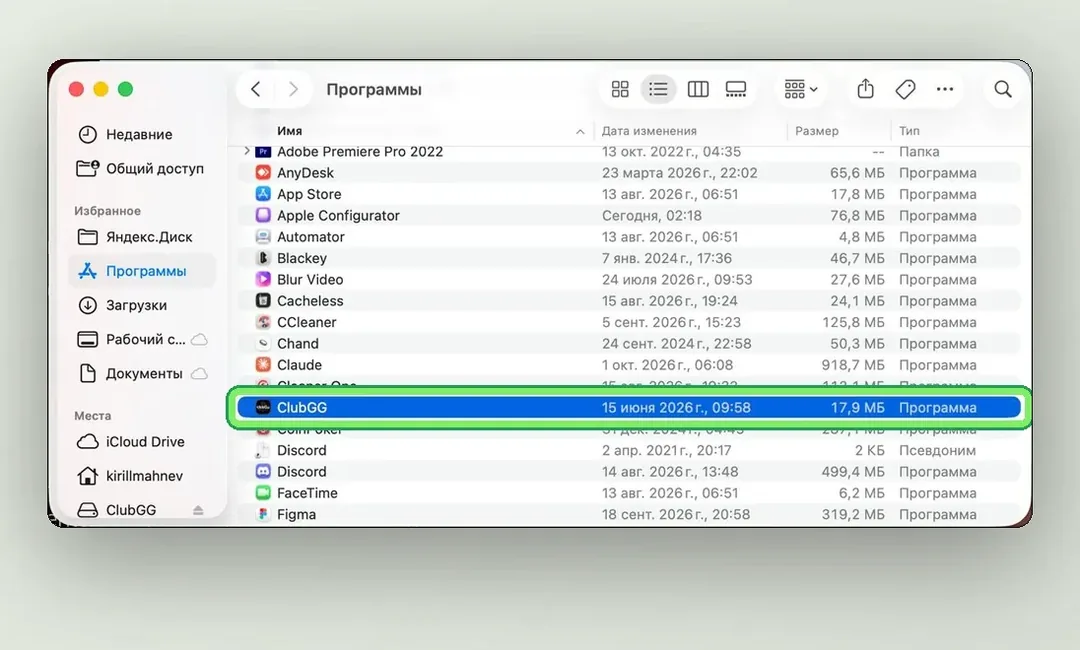
3Launch ClubGG from Applications
Close the disk image window, open Finder → Applications and launch ClubGG from there, not from the disk image.
- 4
 4
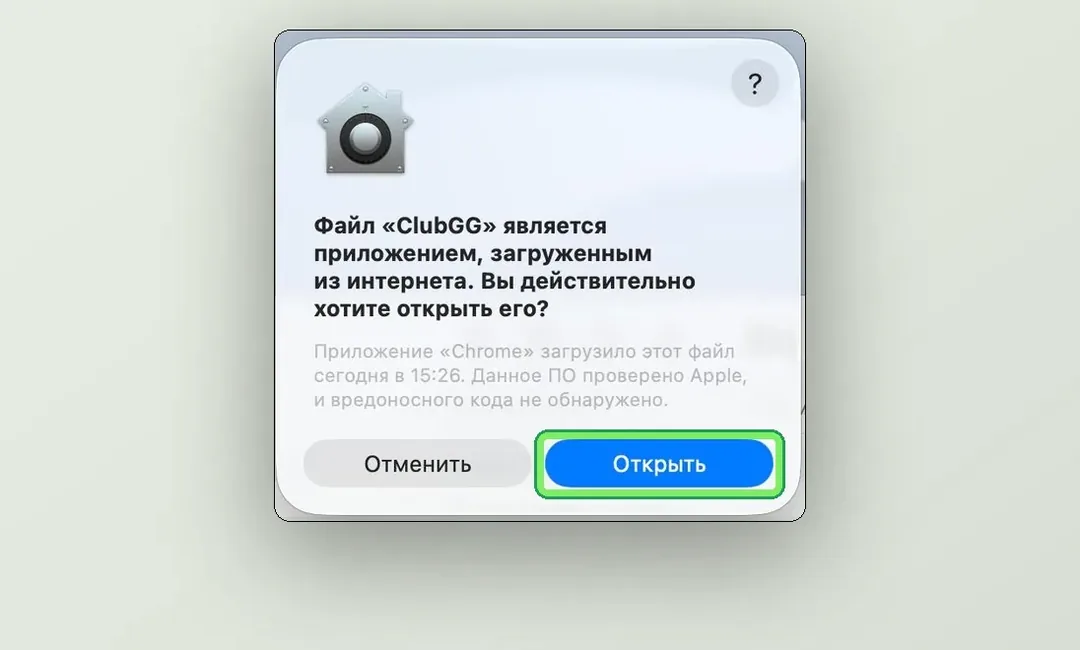
4Confirm opening it
macOS warns that the app was downloaded from the internet and checked by Apple. Click Open.
- 5
 5
5Wait for the update
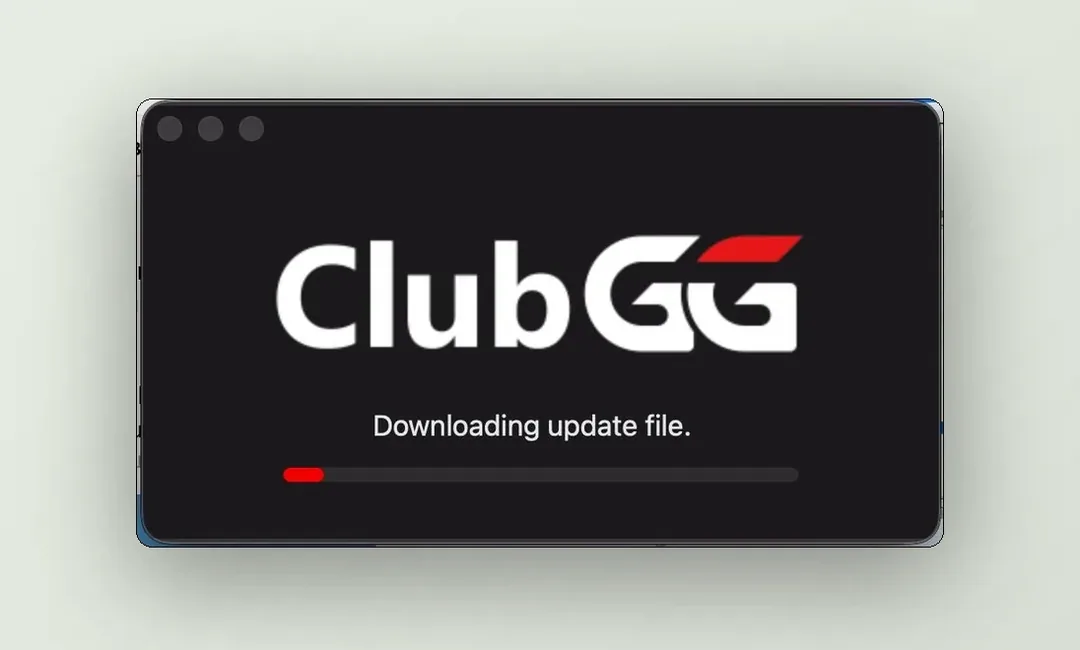
On first launch ClubGG downloads the current version — it takes a minute or two.
- 6
 6
6Sign in or create an account
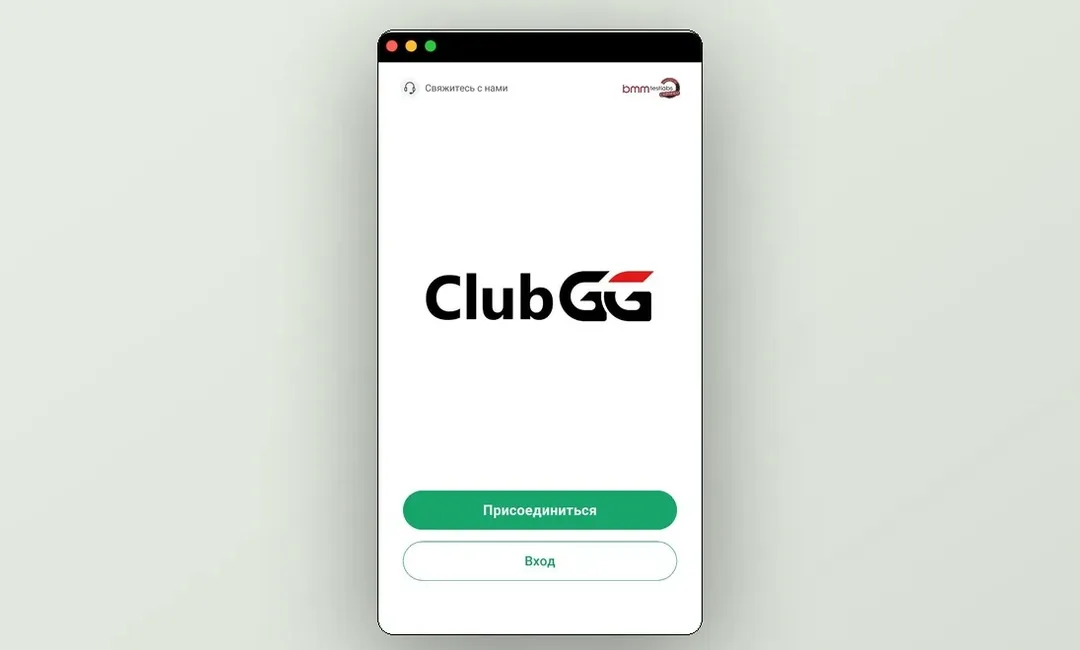
The ClubGG start screen opens with the Join and Log in buttons.
Always open ClubGG from the Applications folder. If you launch it straight from the .dmg, the macOS warning repeats on every launch and updates won’t install.
Next step — create an account and join a ClubGG club.