
How to install X-Poker on Windows
The installer from the official site, the setup wizard and first launch of X-Poker on Windows — 14 steps with screenshots.
- 1
 1
1Download the installer from x-poker.net
Open the official site x-poker.net on your computer (the same address is printed on the table felt inside the app). Under the trophy there are three buttons: Download App Store, Download Android and Download Windows. Click Windows. The file X-Poker10.0.msi — a Windows installer — downloads. Don’t download “X-Poker for PC” from any other site.
Open x-poker.net - 2
 2
2Allow the file to run
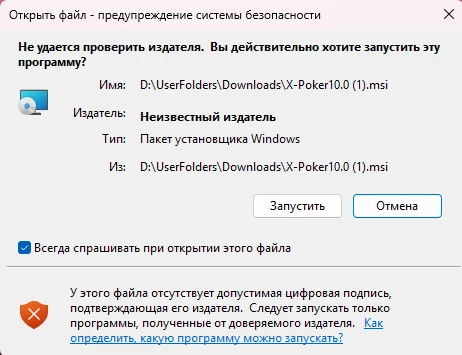
Open the downloaded file from your browser downloads (Ctrl + J). Windows shows a security warning that the publisher can’t be verified: the X-Poker installer isn’t digitally signed, so Publisher reads Unknown Publisher. That’s normal for the original file from x-poker.net — check that the file name is X-Poker10.0.msi and it came from the official site, then click Run.
- 3
 3
3Click Next in the InstallShield wizard
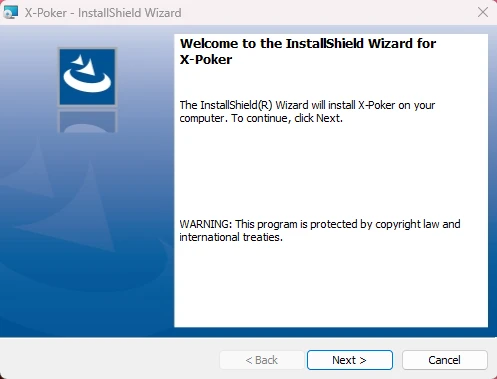
The Welcome to the InstallShield Wizard for X-Poker window opens. Click Next.
- 4
 4
4Keep the default folder
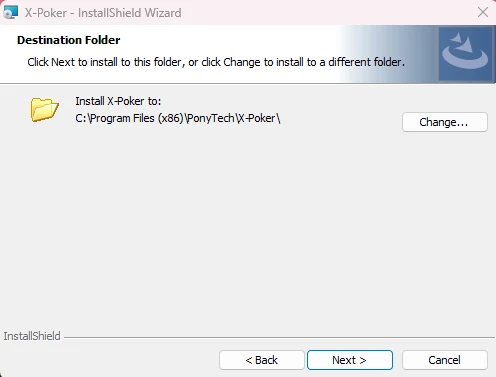
On the Destination Folder step the installer suggests C:\Program Files (x86)\PonyTech\X-Poker\. Keep it so the client updates smoothly and click Next. Change… lets you pick another folder, but there’s no need.
- 5
 5
5Click Install
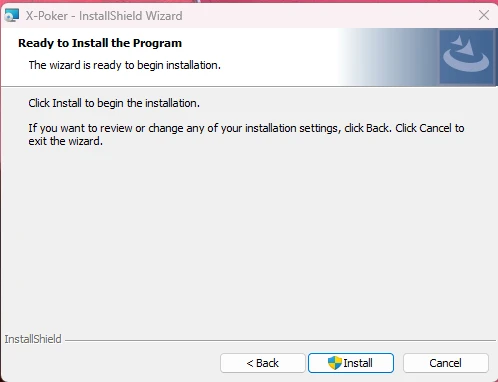
In Ready to Install the Program click Install (the shield on the button means Windows will ask for administrator permission — confirm with Yes). Back returns to the previous step if you want to change anything.
- 6
 6
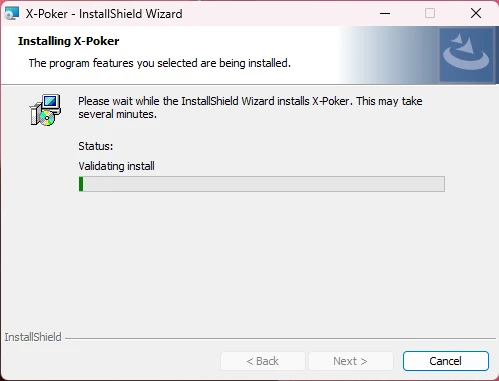
6Wait for the installation to finish
The Installing X-Poker window shows progress (Status: Validating install, then copying files). It usually takes under a minute; nothing to click. Your antivirus may scan the files at this point — let it finish.
- 7
 7
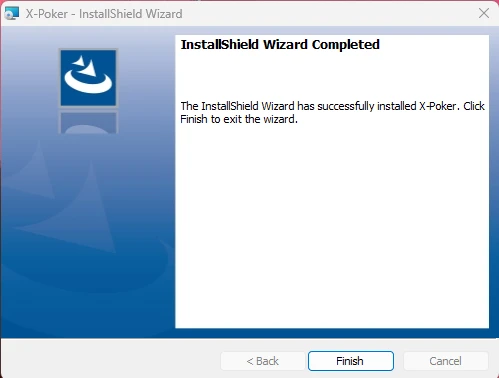
7Click Finish
When InstallShield Wizard Completed appears — “The InstallShield Wizard has successfully installed X-Poker” — click Finish. Installation is done.
- 8
 8
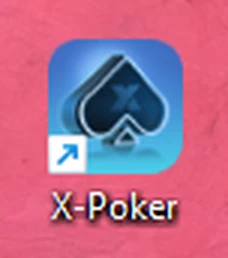
8Launch X-Poker from the desktop
An X-Poker shortcut appears on the desktop — use it to open the client. It opens in a vertical window, like a phone.
- 9
 9
9Wait for the first-launch update
On first launch the client downloads the current version: an UPDATE 0% bar at the bottom of the window runs to 100%, then the X-Poker splash and a LOADING screen follow. Nothing to click — you only need an internet connection. The current version is printed at the very bottom (e.g. 1.12.83). The Gaming Labs Certified badge in the top-right corner means X-Poker’s random number generator is certified.
- 10
 10
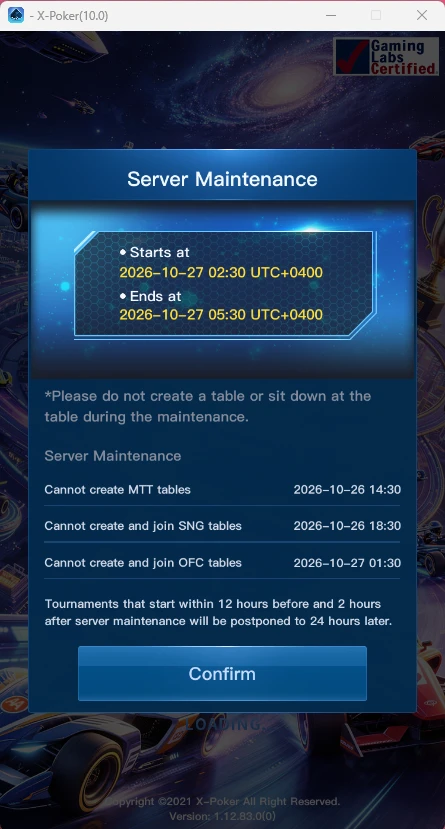
10Read the maintenance notice
Sometimes a Server Maintenance window appears after loading: when the servers will be down (times in UTC+4) and from what moment MTT, SNG and OFC tables can’t be created. Tournaments that fall into that window are postponed by 24 hours. Read it and click Confirm. If there’s no notice, you land on the login screen right away.
- 11
 11
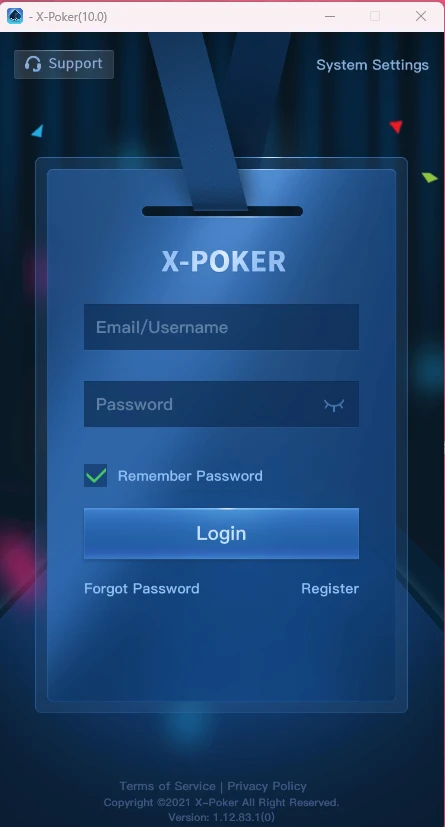
11Login screen: click Register
The login screen has Email/Username and Password fields, a Remember Password tick and a Login button. If you already have an account from your phone, just log in — clubs and balance are shared. For a new account click Register at the bottom right. Support at the top opens a chat with X-Poker support; Forgot Password recovers your password.
- 12
 12
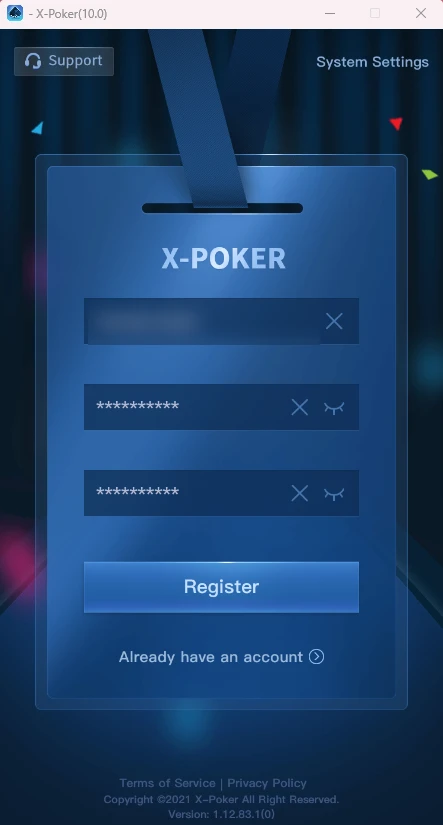
12Choose a username and password
The sign-up form has three fields: a username (Latin letters; it doubles as your login — no email is needed at this step), a password and its confirmation. The eye icon reveals the password. Don’t reuse a password from your email or other poker sites. Click Register. Changed your mind? Already have an account takes you back to the login screen.
- 13
 13
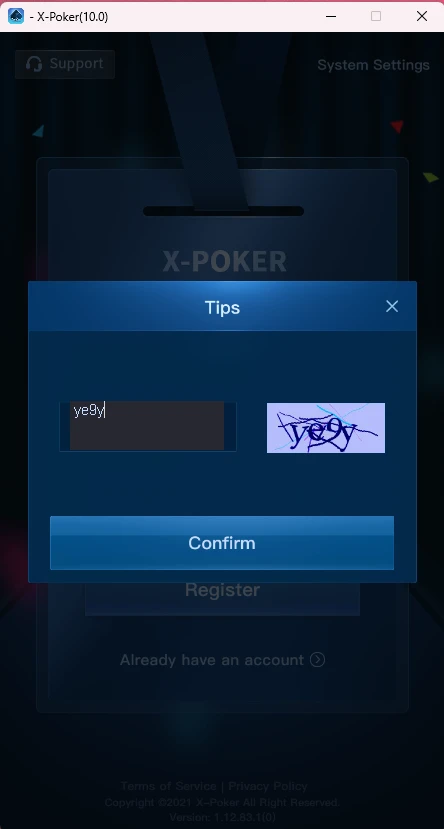
13Enter the captcha
A Tips window with an image captcha appears: type the characters from the picture into the field on the left (letters and digits are easy to confuse — if you get it wrong, the window shows again) and click Confirm.
- 14
 14
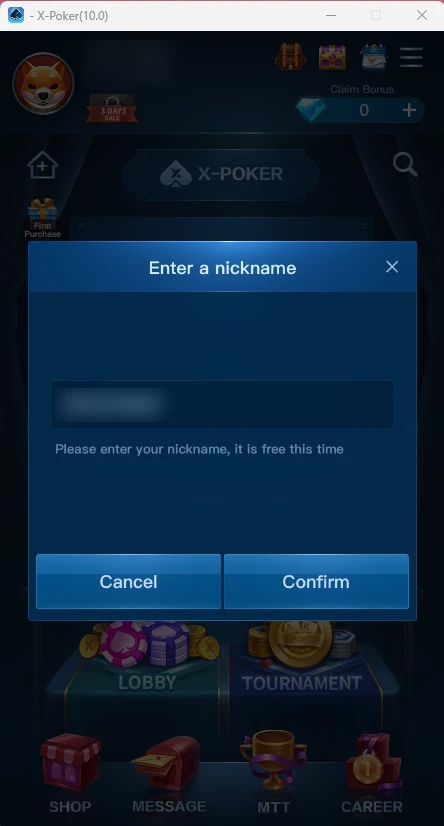
14Set a nickname — the account is ready
You’re in the lobby, and X-Poker immediately asks for a nickname — the Enter a nickname window. The default is “XP” plus your ID; type your own nick (it’s what others see at the table) and click Confirm. The first time is free — “it is free this time” — later changes cost diamonds, so choose carefully. Your player ID is printed under the avatar in the top-left corner of the lobby — note it, the agent will need it. Next, join a club by its ID; you can bind an email for password recovery in the settings — about the X-Poker account.
Next step — create an account and join a X-Poker club.