Step 11 of 42
Club Data: club stats and exporting data for a period
How to see the club’s games, profit and rake for a day, a week or two, and how to export a report for any period by e-mail.
Club lobby → club menu → Data
Club Data is the club’s bookkeeping. It shows how many games were played, the result and how much rake (Fee) the club collected for the chosen period, and the export sends a detailed spreadsheet report to your e-mail.
Viewing stats is free. Exporting reports costs Diamonds — the price depends on the reports you select, and your Diamond balance is shown on the export screen. How to buy Diamonds — see Diamonds and Live Dollar.
All dates use the club’s time zone. If you settle with agents weekly, set the time zone once and don’t change it — otherwise the week boundaries shift and report totals won’t match.
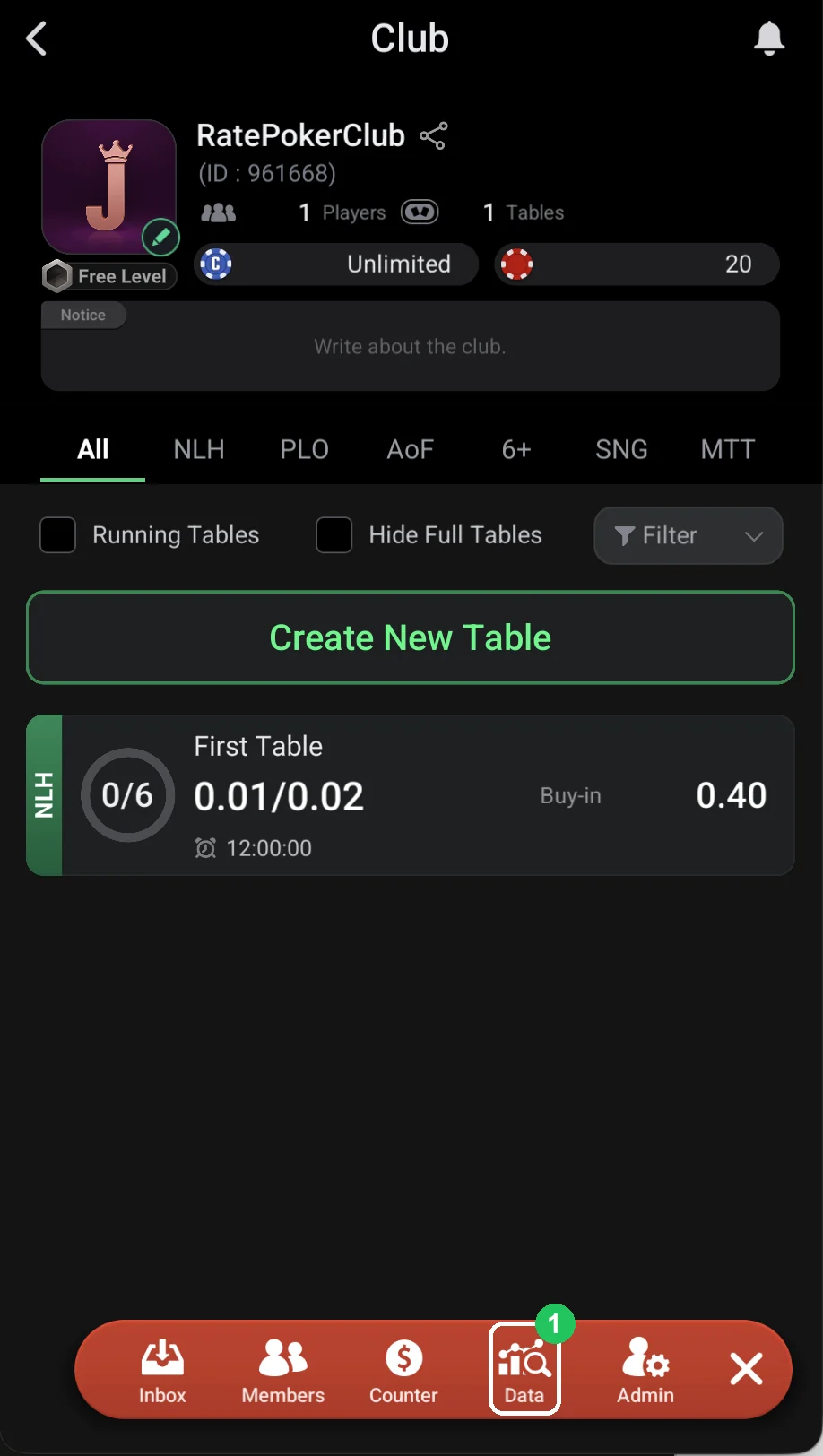
Open Data
- 1 — Data: in the club lobby tap the red menu button at the bottom and choose Data.
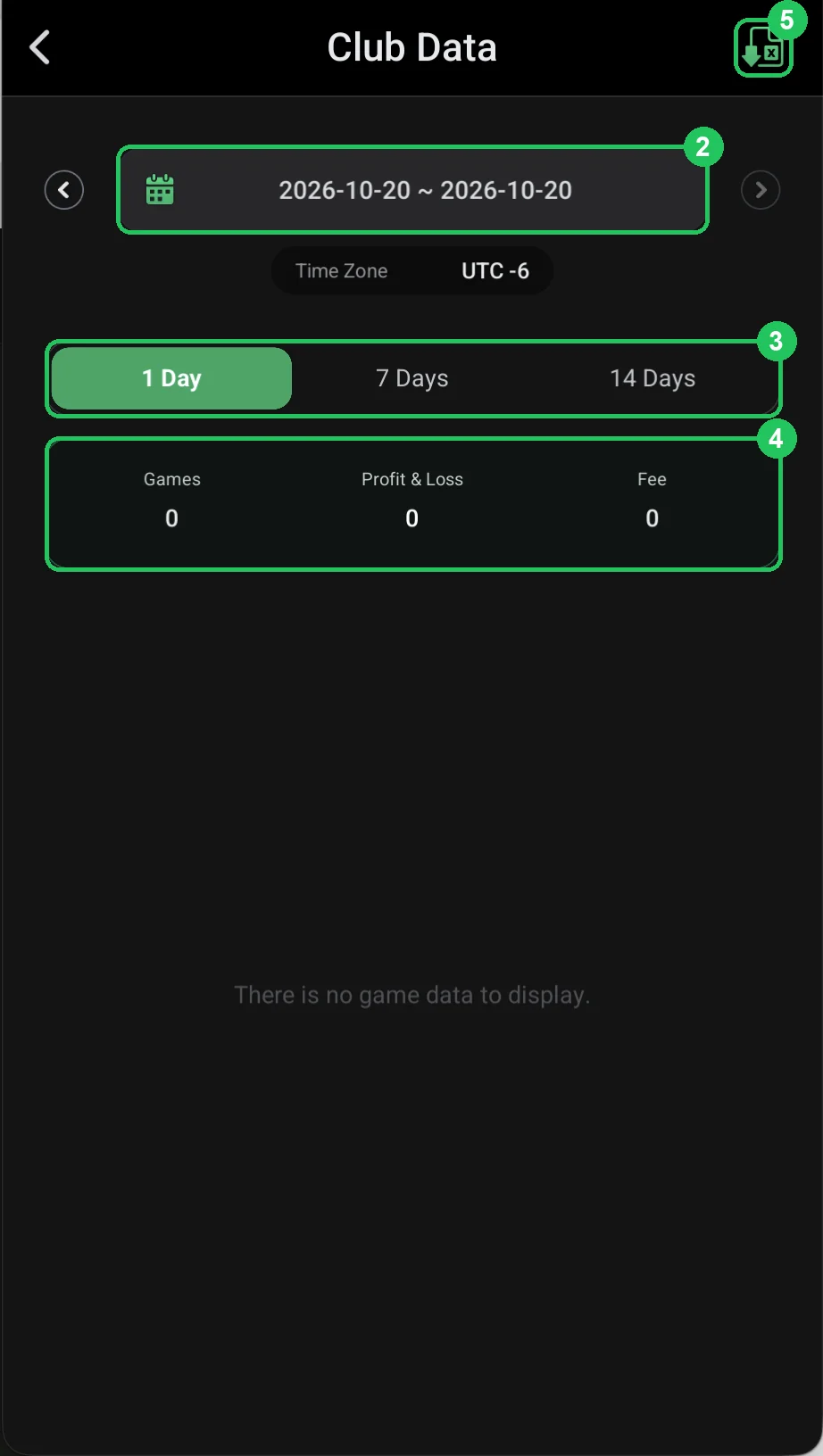
Stats for a period
- 2 — period: the arrows step through dates; tap the calendar field to pick a custom range.
- 3 — 1 Day / 7 Days / 14 Days: quick presets — a day, a week or two weeks.
- 4 — Games, Profit & Loss, Fee: number of games, the result and rake collected for the period.
- 5 — export: the green spreadsheet icon in the top right opens the data export.
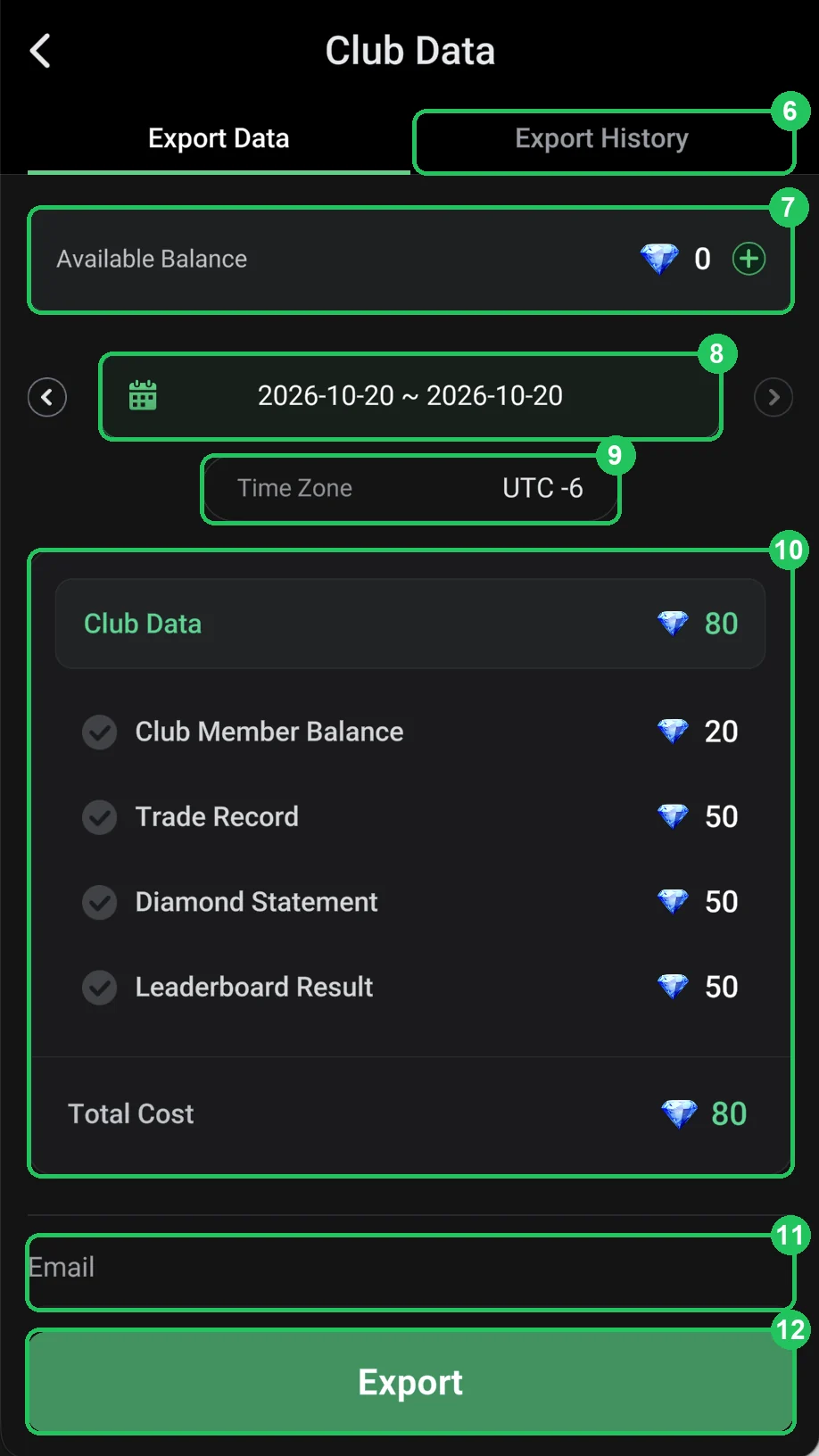
Exporting a report (Export Data)
- 6 — Export History: past exports — handy to find a report you’ve already sent.
- 7 — Available Balance: your Diamonds; “+” buys more.
- 8 — period: the report dates — from and to.
- 9 — Time Zone: the time zone used to count days.
- 10 — reports: tick what you need — Club Member Balance (20 Diamonds), Trade Record (chip operations, 50), Diamond Statement (Diamond spending, 50), Leaderboard Result (50). Total Cost shows the final price.
- 11 — Email: where the file will be sent.
- 12 — Export: start the export — the report arrives at that e-mail.
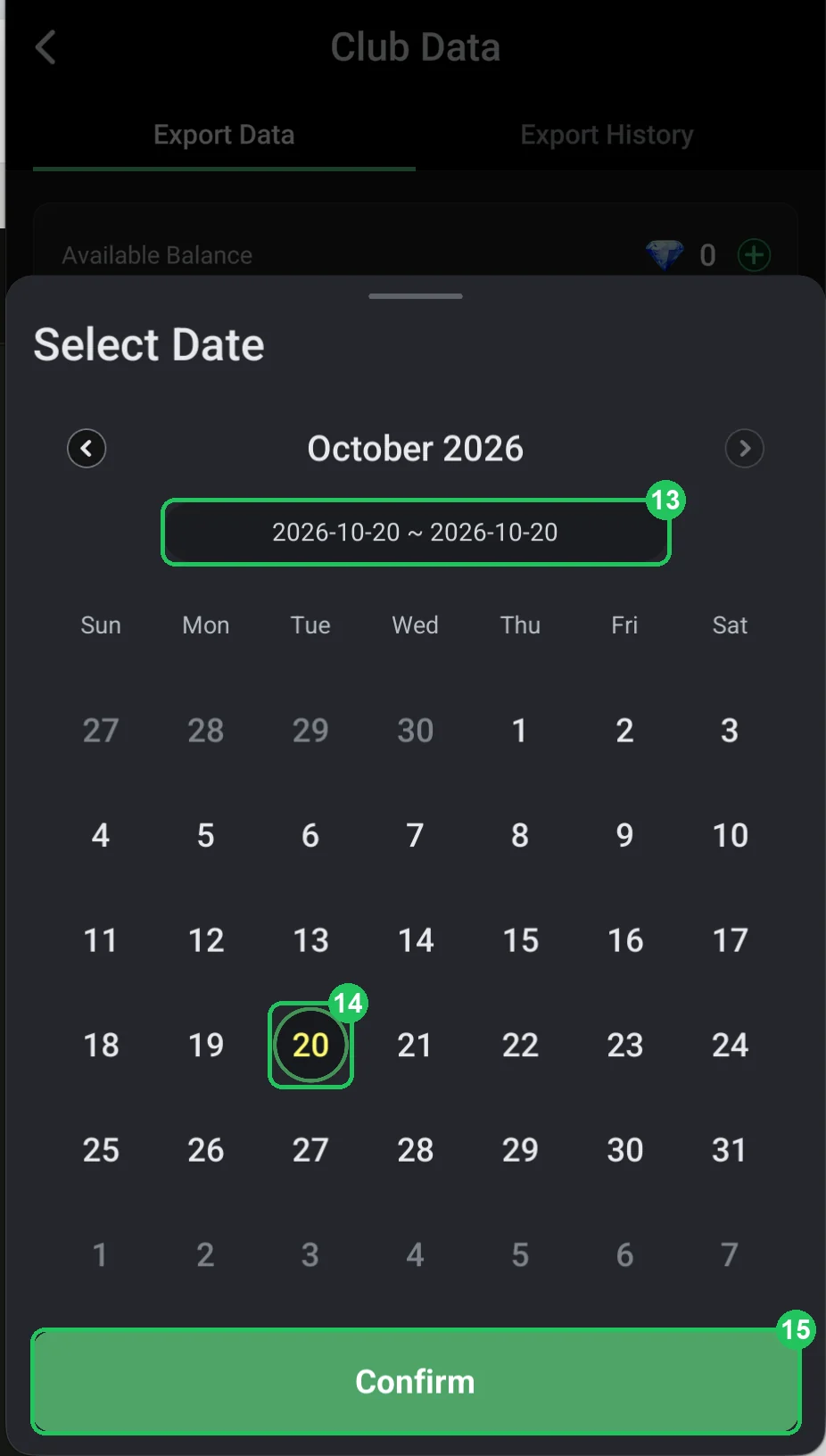
Choosing your own period
- 13 — range: the selected “from ~ to” dates above the calendar.
- 14 — dates: tap the first day of the period, then the last; the arrows next to the month switch months.
- 15 — Confirm: confirm the period and return to the export.
Using the reports
- Export Trade Record and Club Member Balance weekly — that’s the basis for settling with agents and players.
- Compare Fee from the stats with what you pay agents as rakeback.
- Keep the report files: if a chip dispute comes up, you’ll have the operation history for any period.
Export closed periods (e.g. last week) so the numbers no longer change.
If you don’t have enough Diamonds, Export stays inactive — top up with “+”.