What ClubGG Looks Like
ClubGG is made by the GGPoker team, so anyone who has played on GG will recognize the interface right away: the same dark style, big action buttons and a table with helpful hints. But the app is built differently — around clubs rather than a shared lobby. Below are real screenshots: what you’ll see on your phone, what tables look like in different games and how ClubGG looks on a computer.
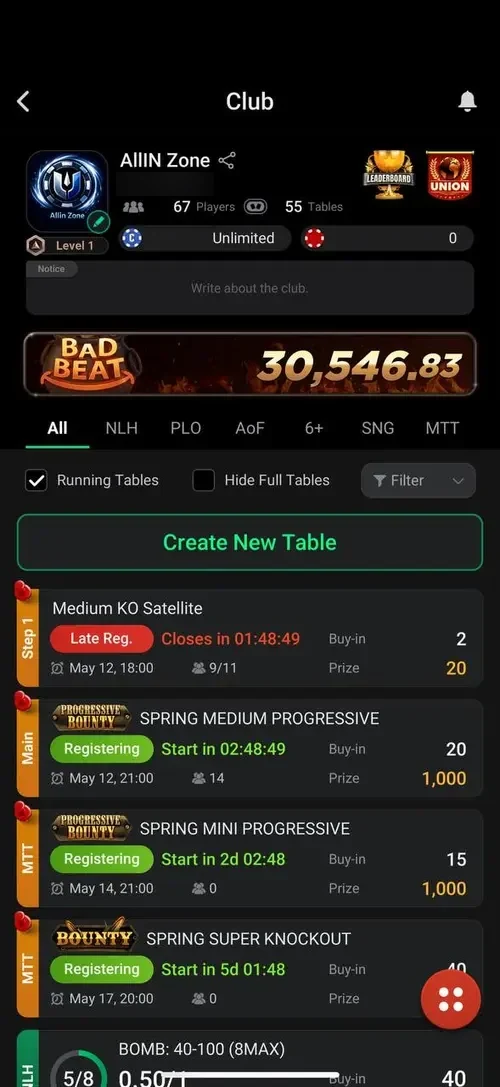
ClubGG on Mobile: Club, Union and Tournaments
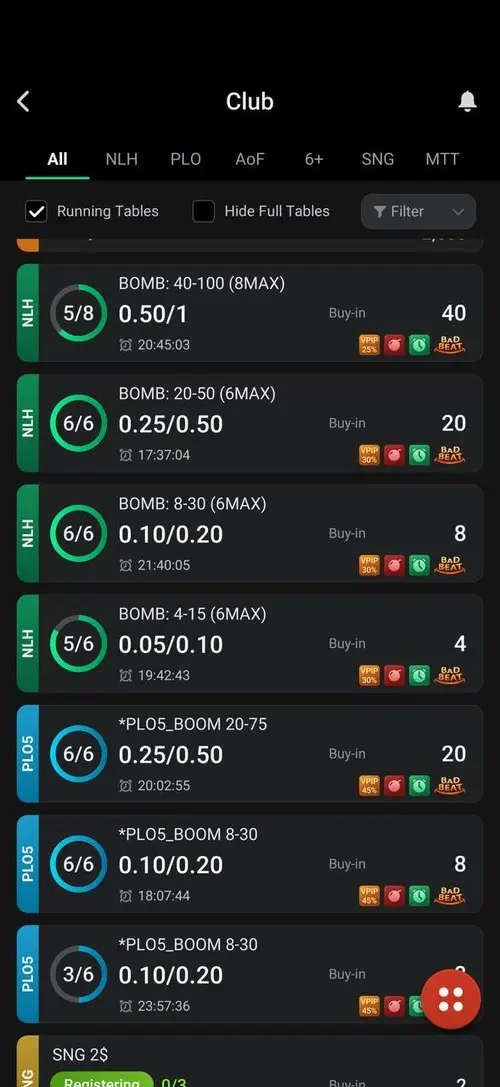
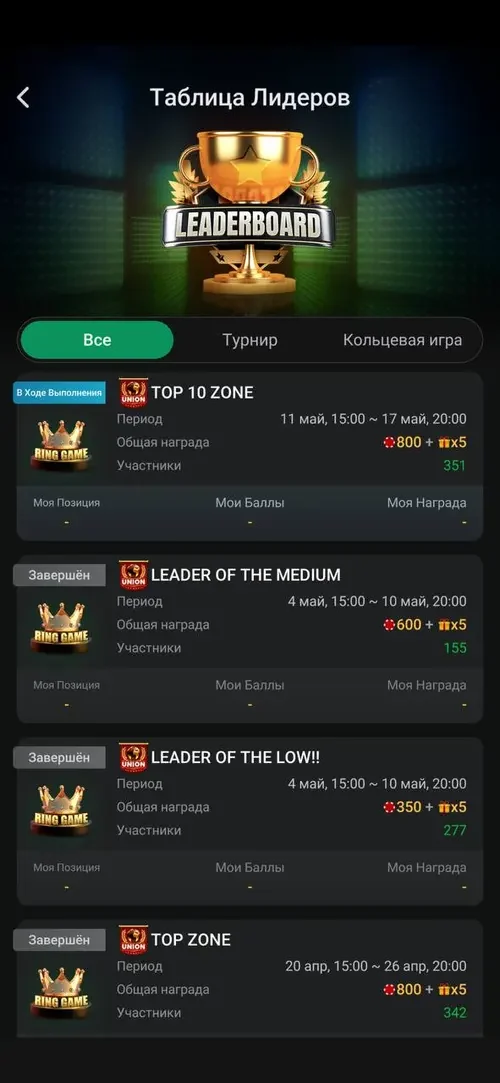
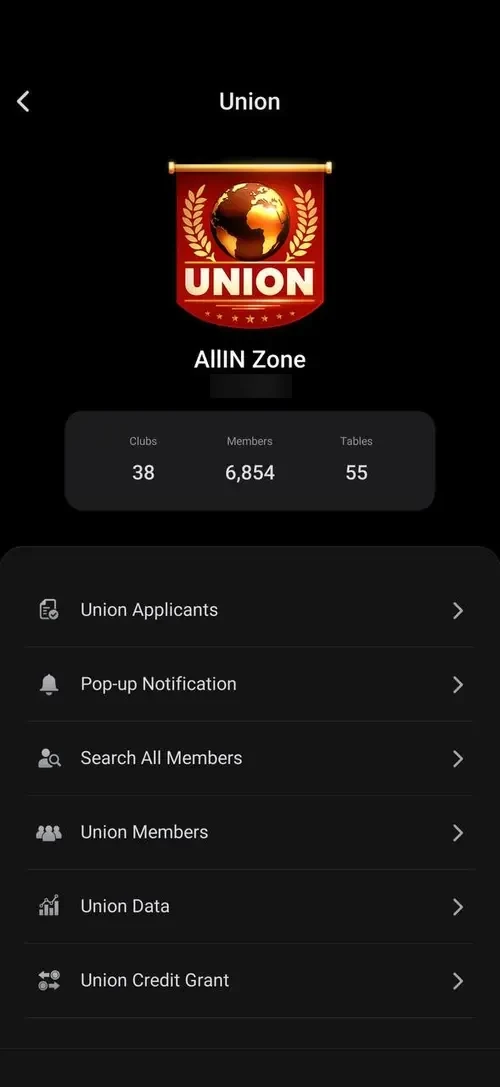
Everything starts with the club screen. At the top: the logo, club ID, number of players and tables, and your chip balance. Below: the Bad Beat Jackpot banner (if the club takes part) and the game tabs. A union has its own screen: how many clubs and members it has, plus a menu for owners. Clubs that focus on tournaments also show an MTT schedule and a leaderboard.
ClubGG Tables on Mobile
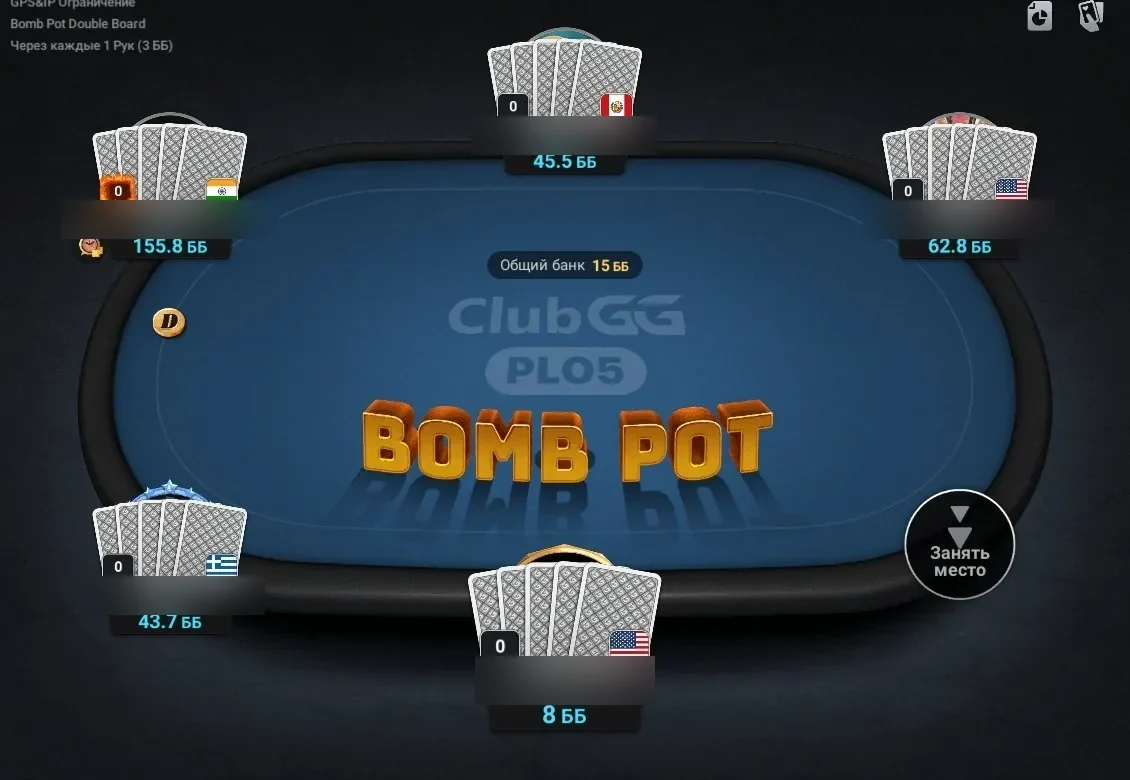
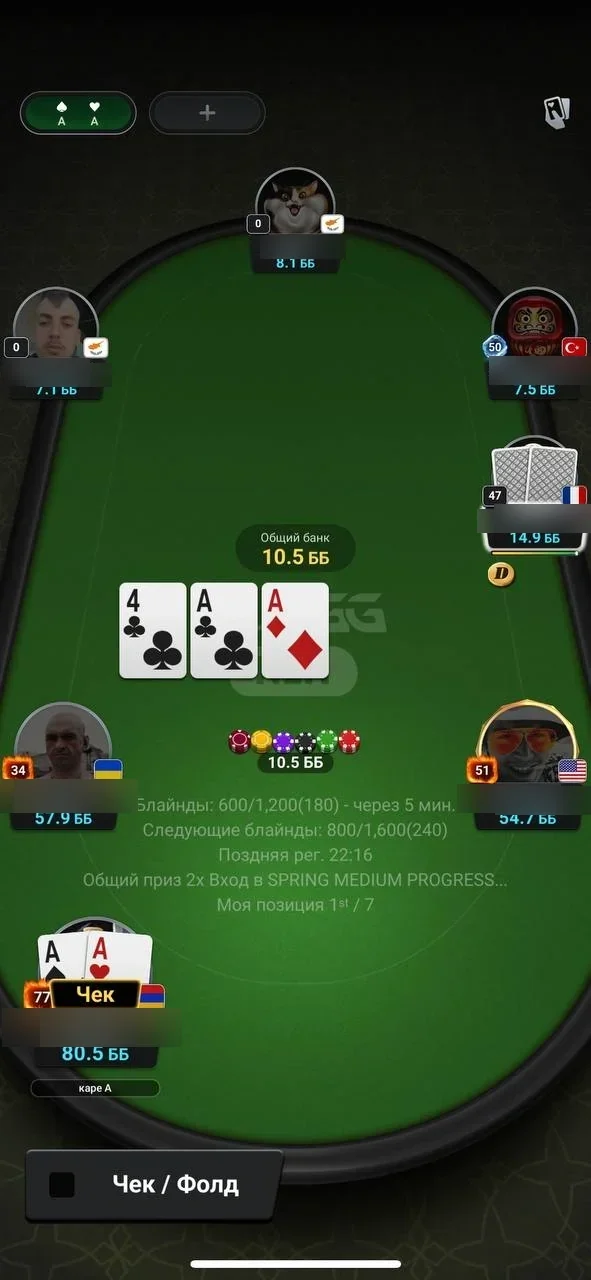
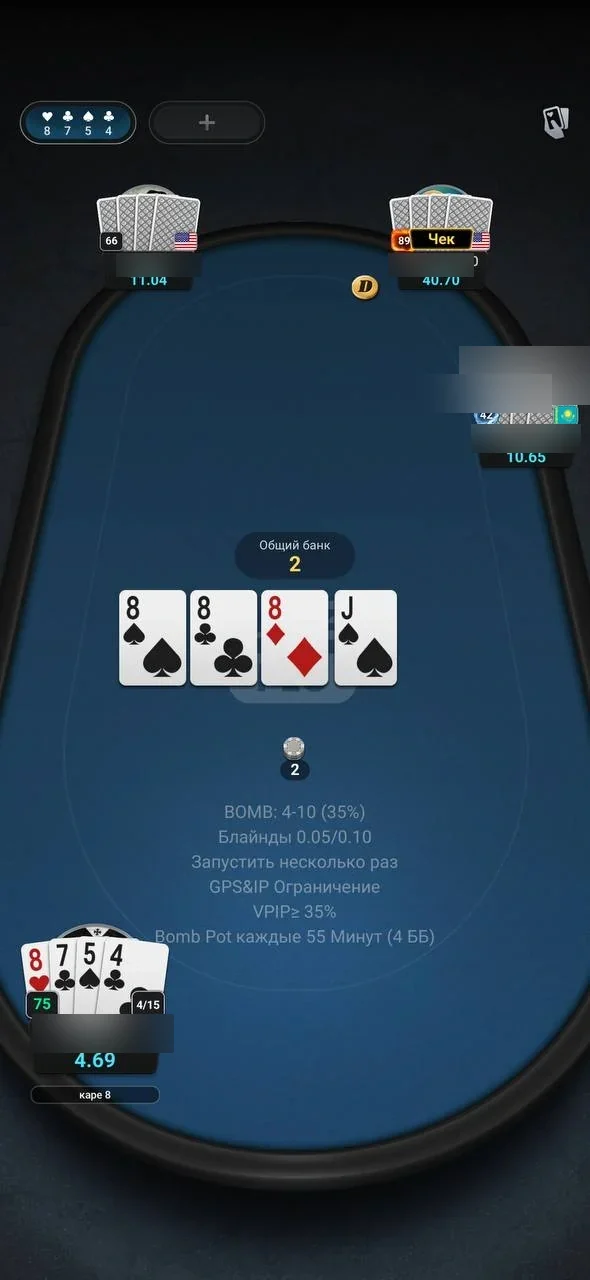
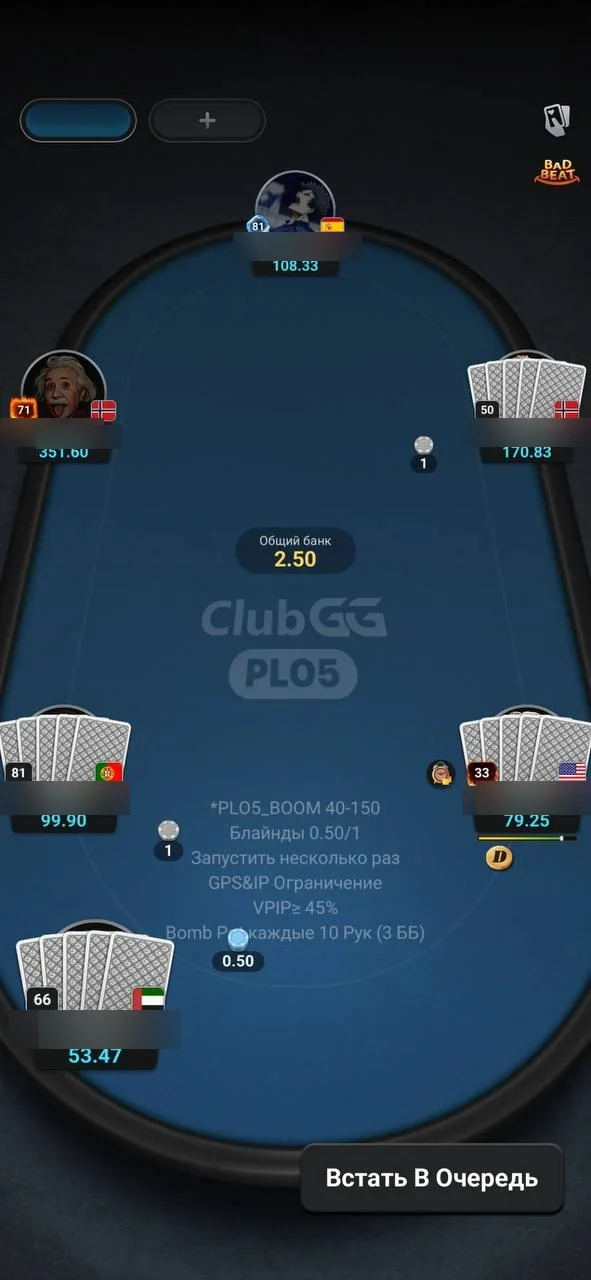
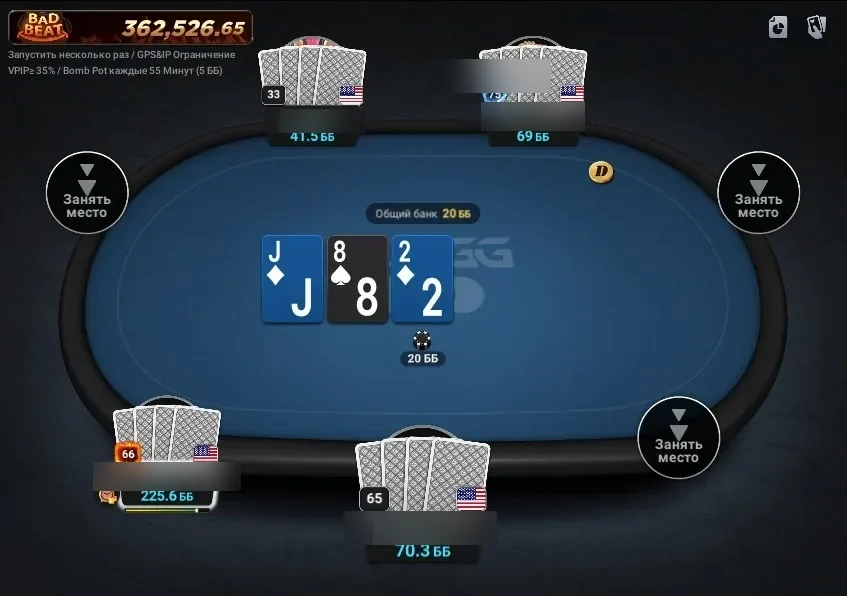
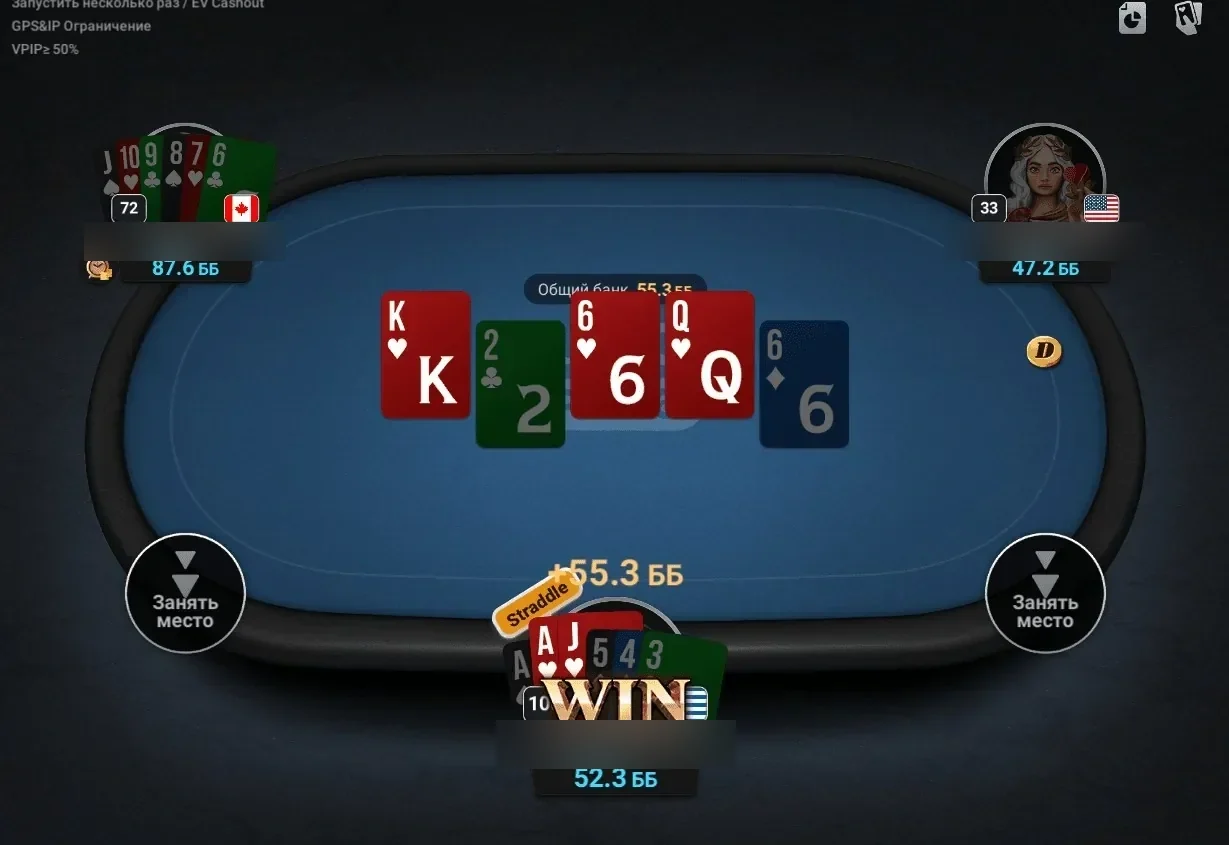
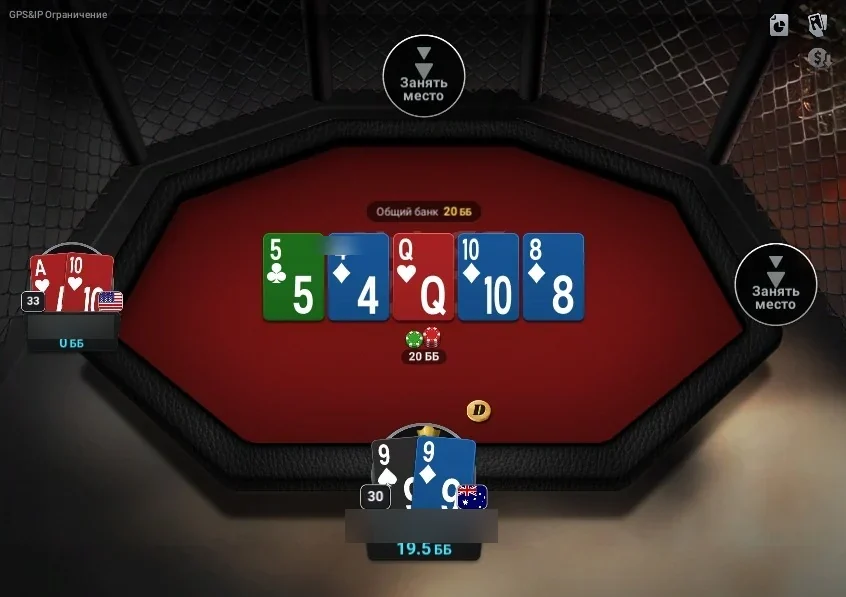
At a mobile table you sit at the bottom of the screen with your opponents around the table. Cards, pot and bets are large, and the action buttons are at the bottom within thumb’s reach. The table menu and hand history are in the top corner. The table design depends on the game: green felt for hold’em, blue for Omaha, and a separate look for tournaments and SNGs.
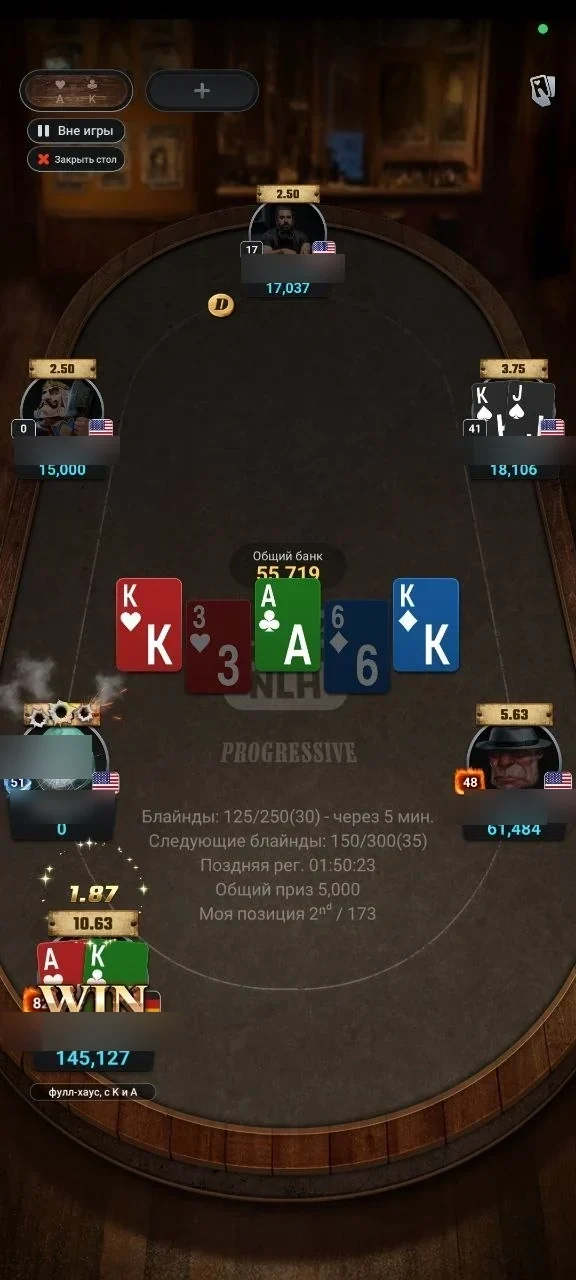
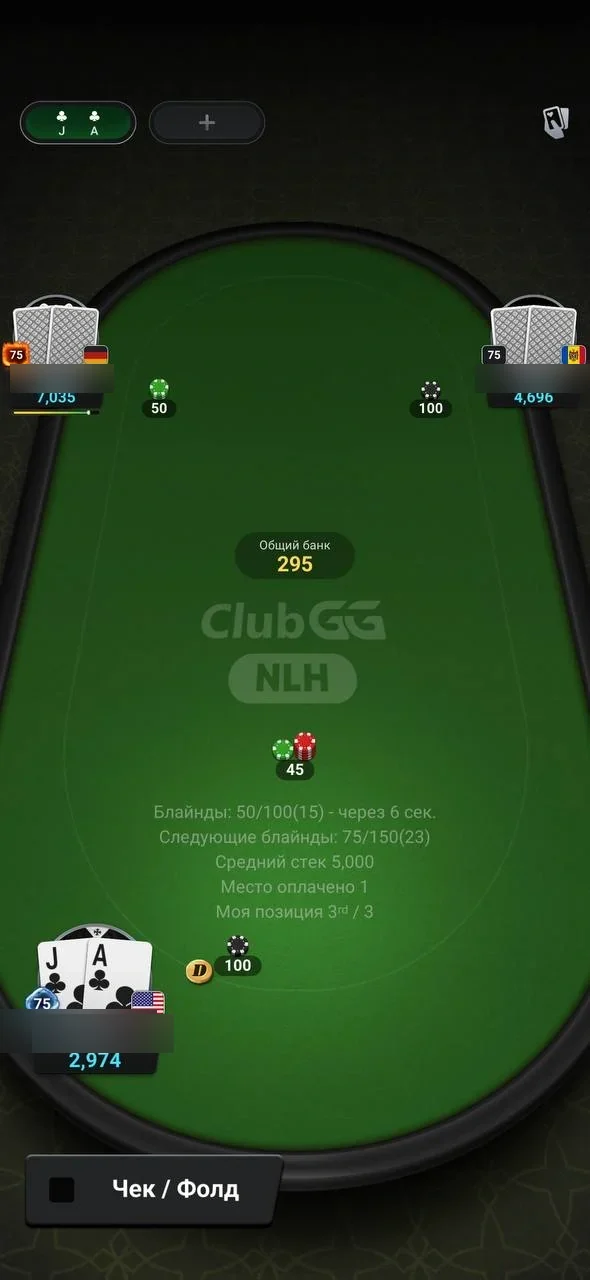
- Action buttons — fold, call/check and raise with a slider and quick bet sizes (½ pot, pot and so on).
- Pre-actions — you can tick “Check/Fold” or “Call Any” in advance, and the app will act for you when it’s your turn.
- Time bank — extra time for a tough decision, shown as a bar under your nickname.
- Run it twice and EV Cashout — on tables where the club has enabled them, they’re listed in the table header.
ClubGG on Desktop: Tables and Multi-Tabling
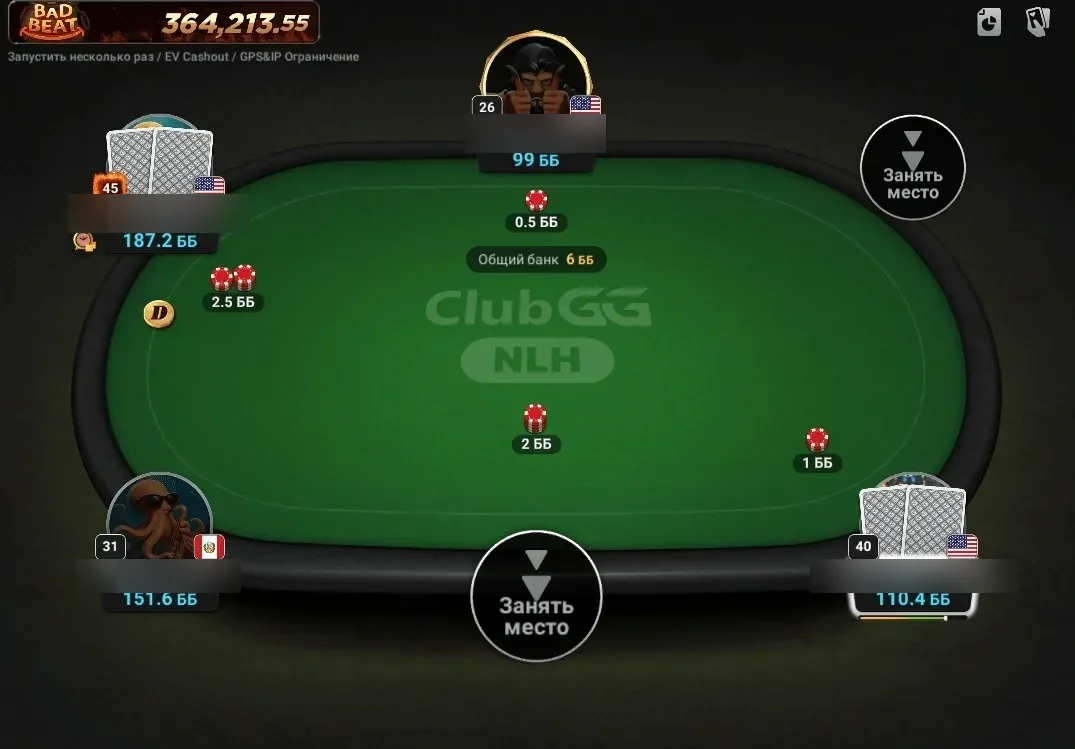
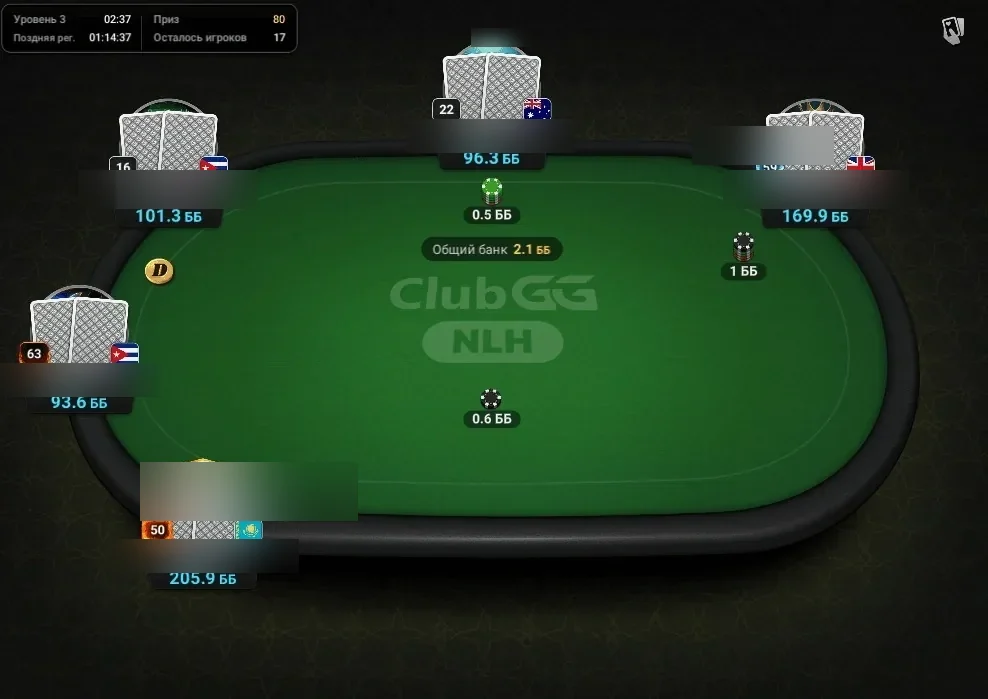
On Windows and Mac, ClubGG is a full client, not an emulator. Tables are bigger and show more information: the table header shows the Bad Beat Jackpot and settings (Run it twice, EV Cashout, GPS and IP restriction), and your stack in big blinds appears next to your nickname. You can play up to 4 tables at once, or up to 12 with a WSOP+ Premium subscription. Installation guides: for Windows and for Mac.
| Phone | Computer | |
|---|---|---|
| Tables at once | switch between tables | up to 4 (up to 12 with WSOP+ Premium) |
| Table size | fits a vertical screen | large, window can be resized |
| Stats and history | PokerCraft in the menu | PokerCraft, Smart HUD — easier on a big screen |
| Account and balance | shared | shared |
Stats, graphs and hand replays live in PokerCraft — we cover what it looks like and what it can do in PokerCraft and Smart HUD.
How to Get Started
Like the interface? The whole path from installation to your first hand is in how to start playing ClubGG, and verified clubs with rakeback and reviews are in our directory.