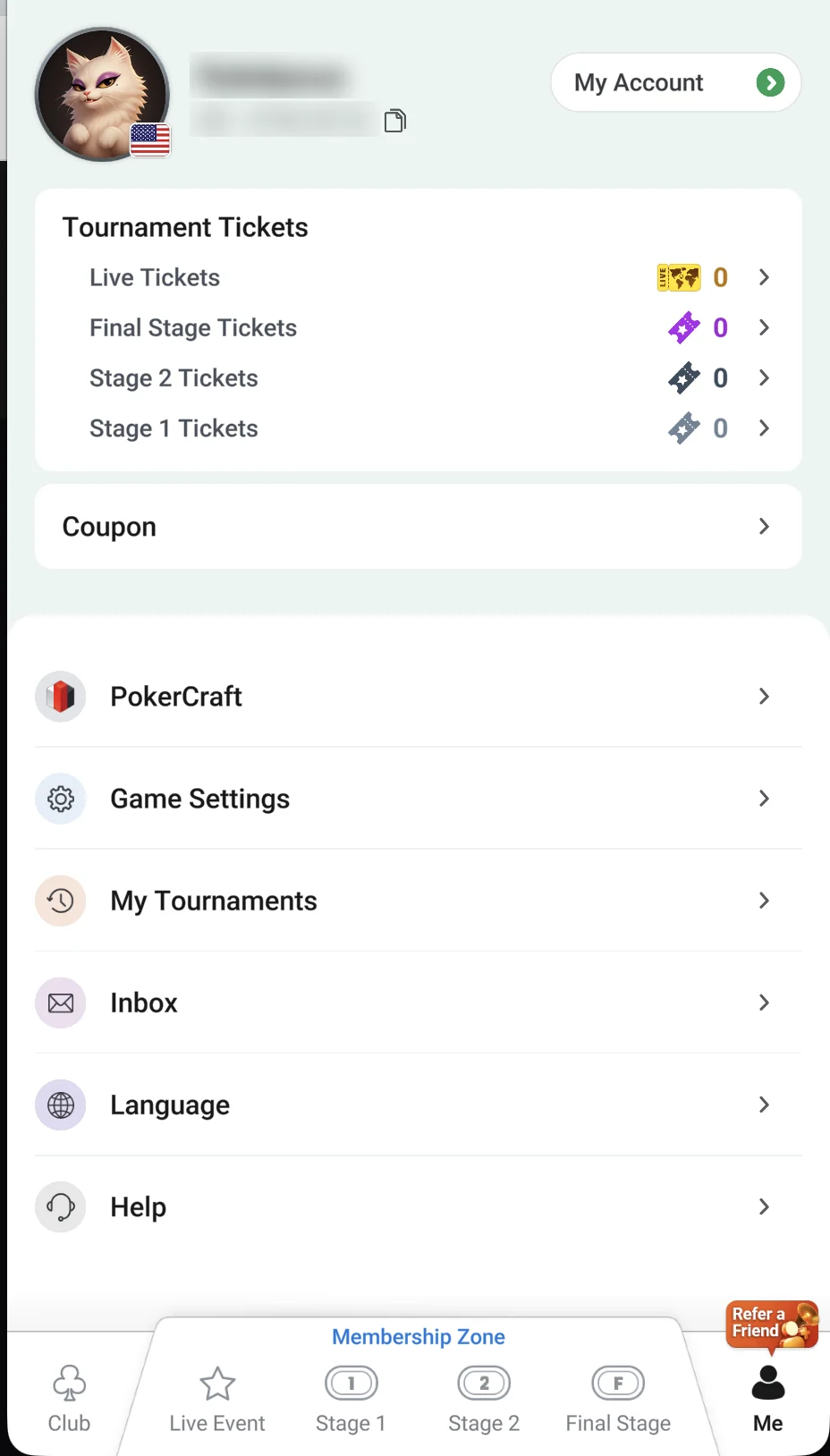
All your personal ClubGG settings and features are in the “Profile” tab in the bottom-right corner. That’s where you’ll find your tournament tickets, coupons, PokerCraft stats, table game settings, tournament history, inbox messages from clubs, app language and help. Below is what each item does and how to set it up before your first session.
The “Profile” tab: tickets, coupon and settings menu“Game Settings”: toggles and card style“My Tournaments”: results and stats
Profile and Account Info
At the top of your profile are your avatar, country flag, nickname and player ID (format 0000-0000) with a copy button. Your agent needs this ID to credit chips to you or find you in the club — copy it from here instead of typing it by hand. The “Account Info” button opens your GGPass details: email, password change and other account settings.
Only give your player ID to your agent or club manager. Your nickname and ID are hard to change — keep that in mind when signing up.
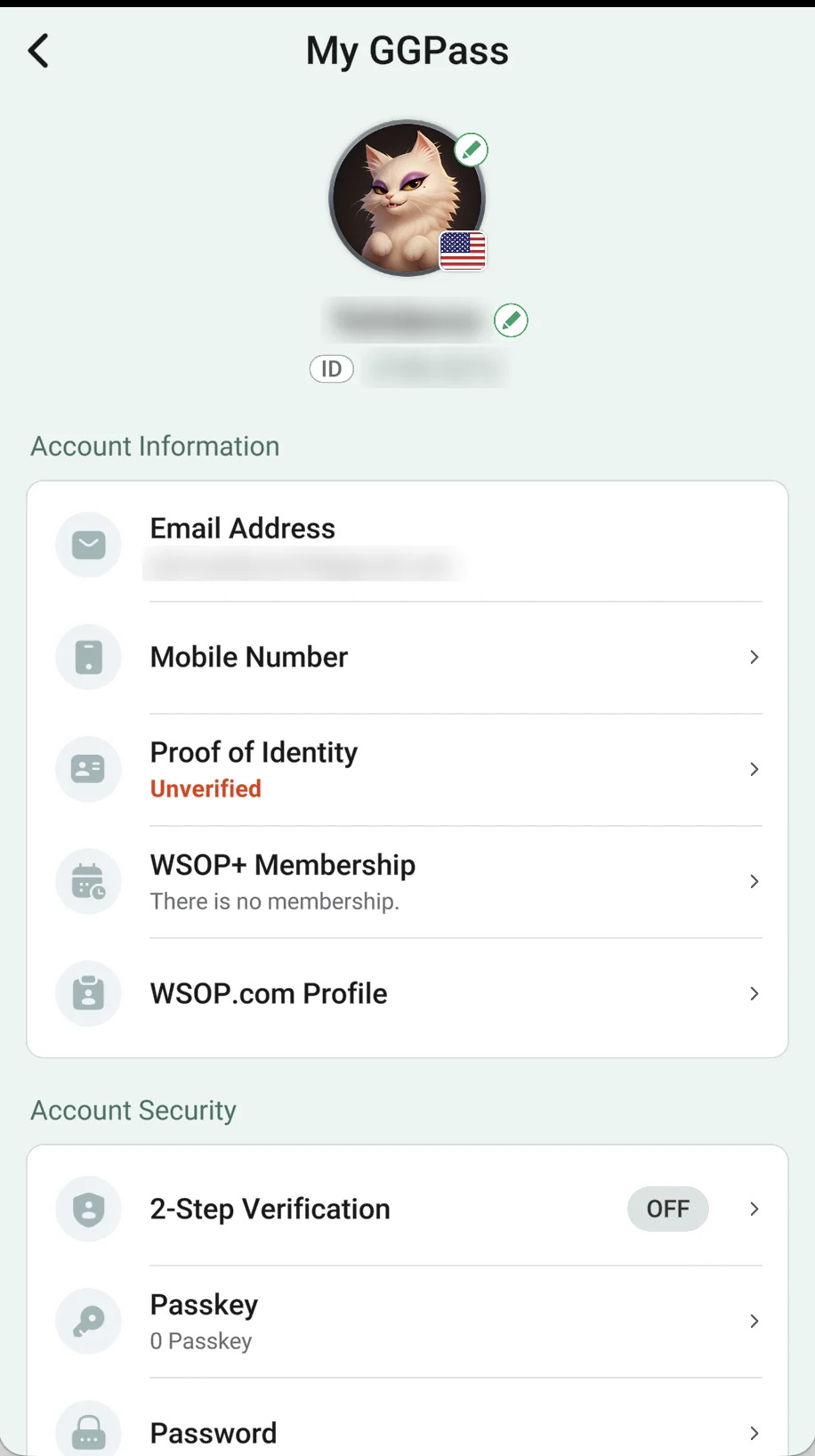
GGPass account: tap your avatar
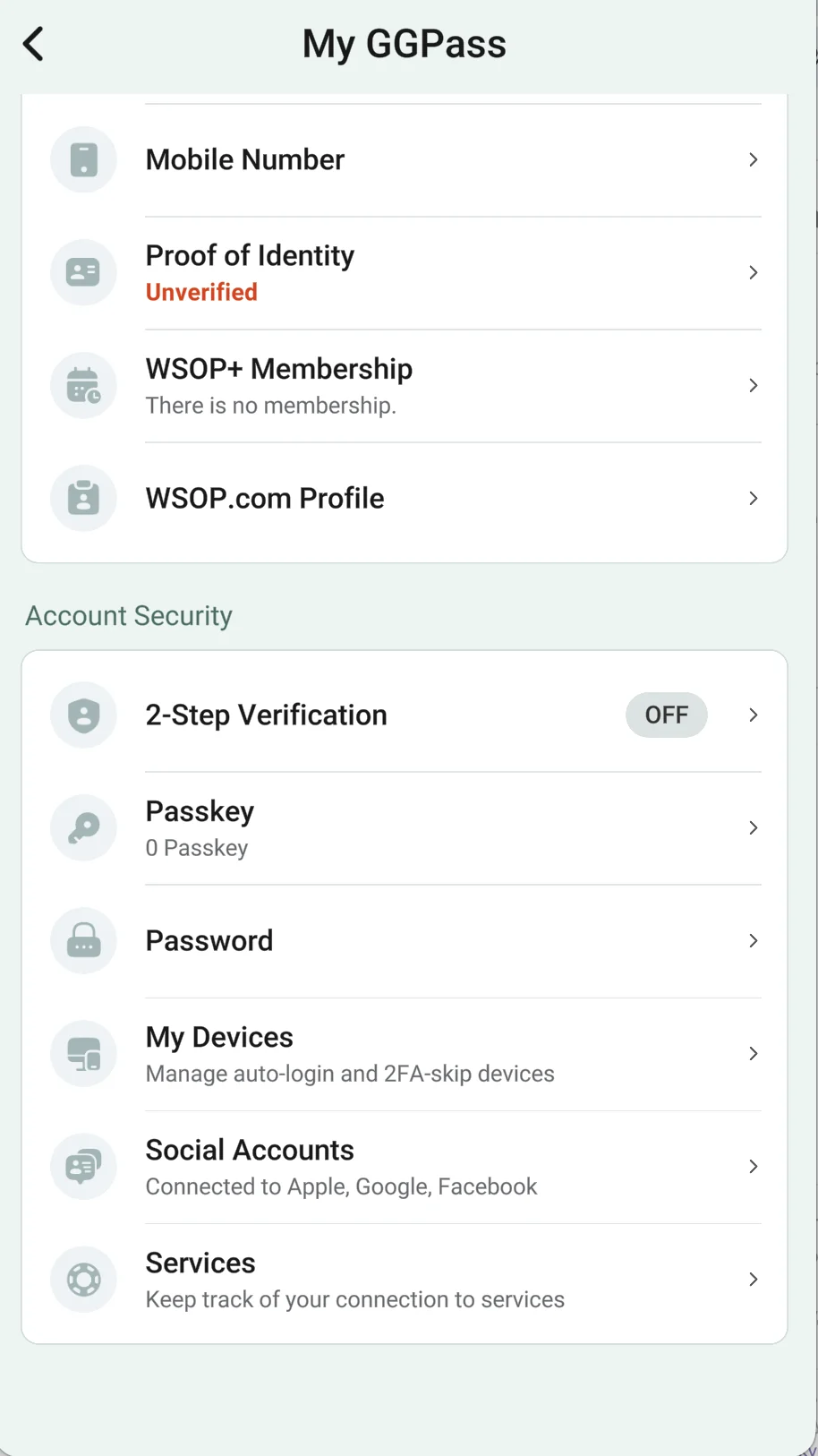
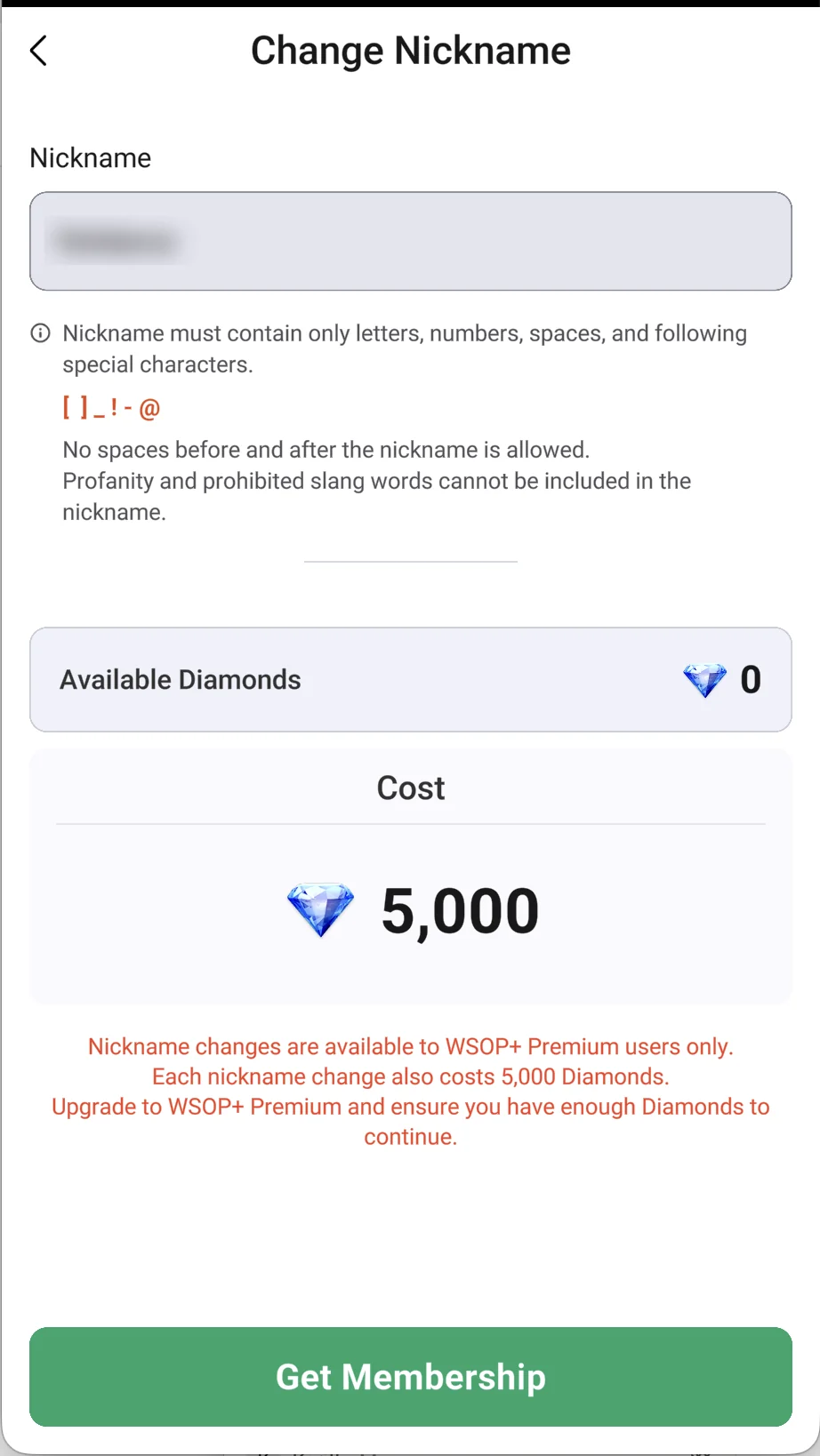
My GGPass: account info and securityAccount Security: 2FA, Passkey, password, devicesChange Nickname: Premium only, 5,000 Diamonds
Tap your avatar in the profile to open My GGPass — your account settings: avatar and country flag, email, mobile number, Proof of Identity, WSOP+ membership status and the link to your WSOP.com profile. Under Account Security you’ll find 2-Step Verification, Passkeys, password change, My Devices (auto-login and 2FA-skip devices) and linked Apple, Google and Facebook accounts.
Turn on 2-Step Verification — it’s the main protection for an account that holds chips. Nickname changes are available to WSOP+ Premium members only and cost 5,000 Diamonds.
Tournament Tickets and Coupon
The “Tournament Tickets” block shows how many tickets you have for ClubGG qualifiers. Each type unlocks its own level of the tournament ladder — the same stages as in the “Membership Zone” tabs at the bottom of the screen.
Stage 1 TicketsEntry to the entry-level qualifying tournaments (Stage 1).
Stage 2 TicketsWon in Stage 1; they give entry to the intermediate qualifiers.
Final Stage TicketsEntry to the Final Stage, where packages to live tournaments are awarded. WSOP+ Premium subscribers also get them for renewing their subscription.
Live TicketsTickets you’ve won to offline tournaments (for example, the WSOP Circuit). Tap the row to see the ticket’s terms.
CouponThis is where you enter ClubGG promo codes and coupons from official promotions. “Bonus codes for free chips” from ads are a scam — more in bonus codes.
Four ticket types: Live, Final Stage, Stage 2 and Stage 1
Game Settings
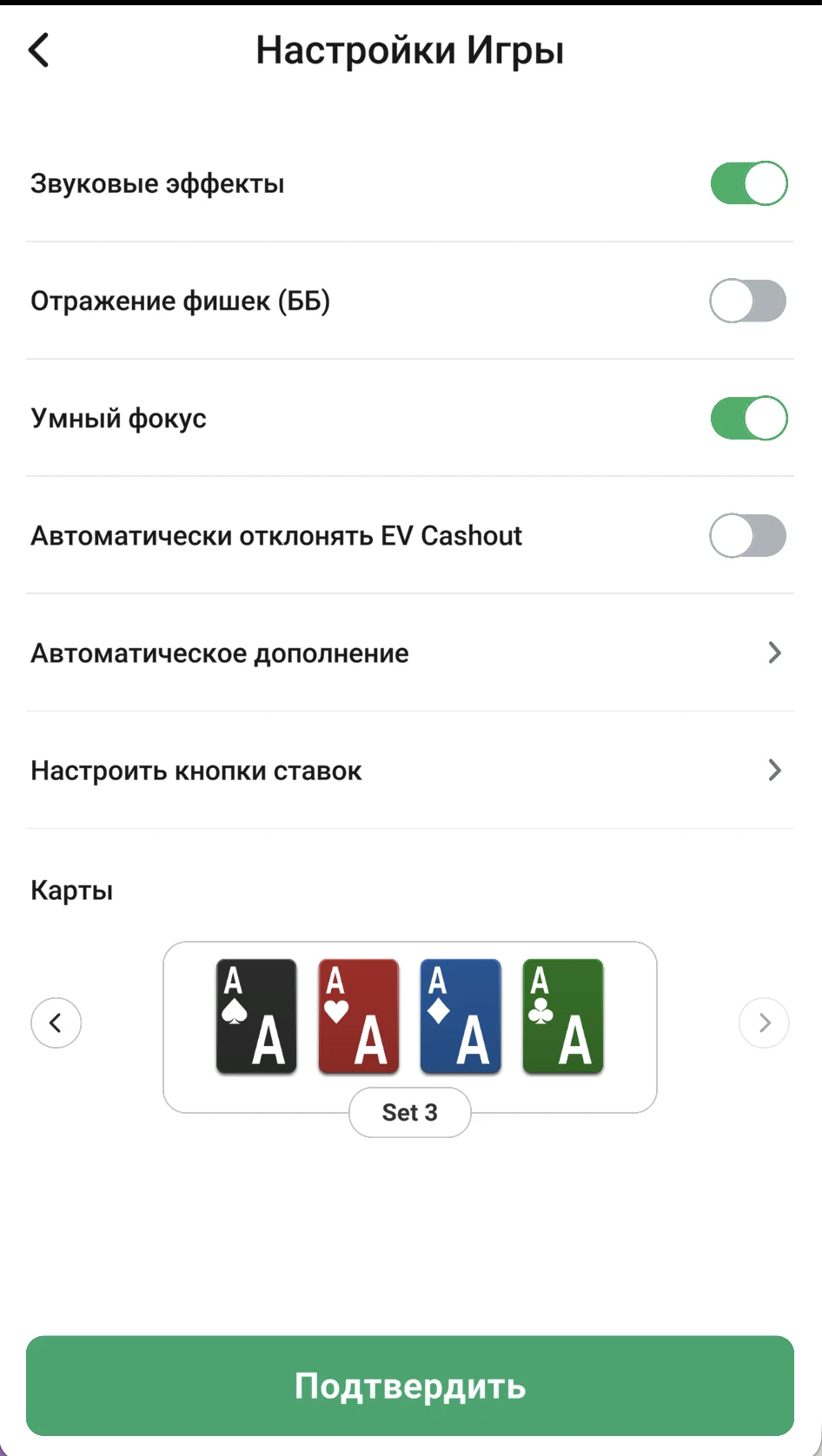
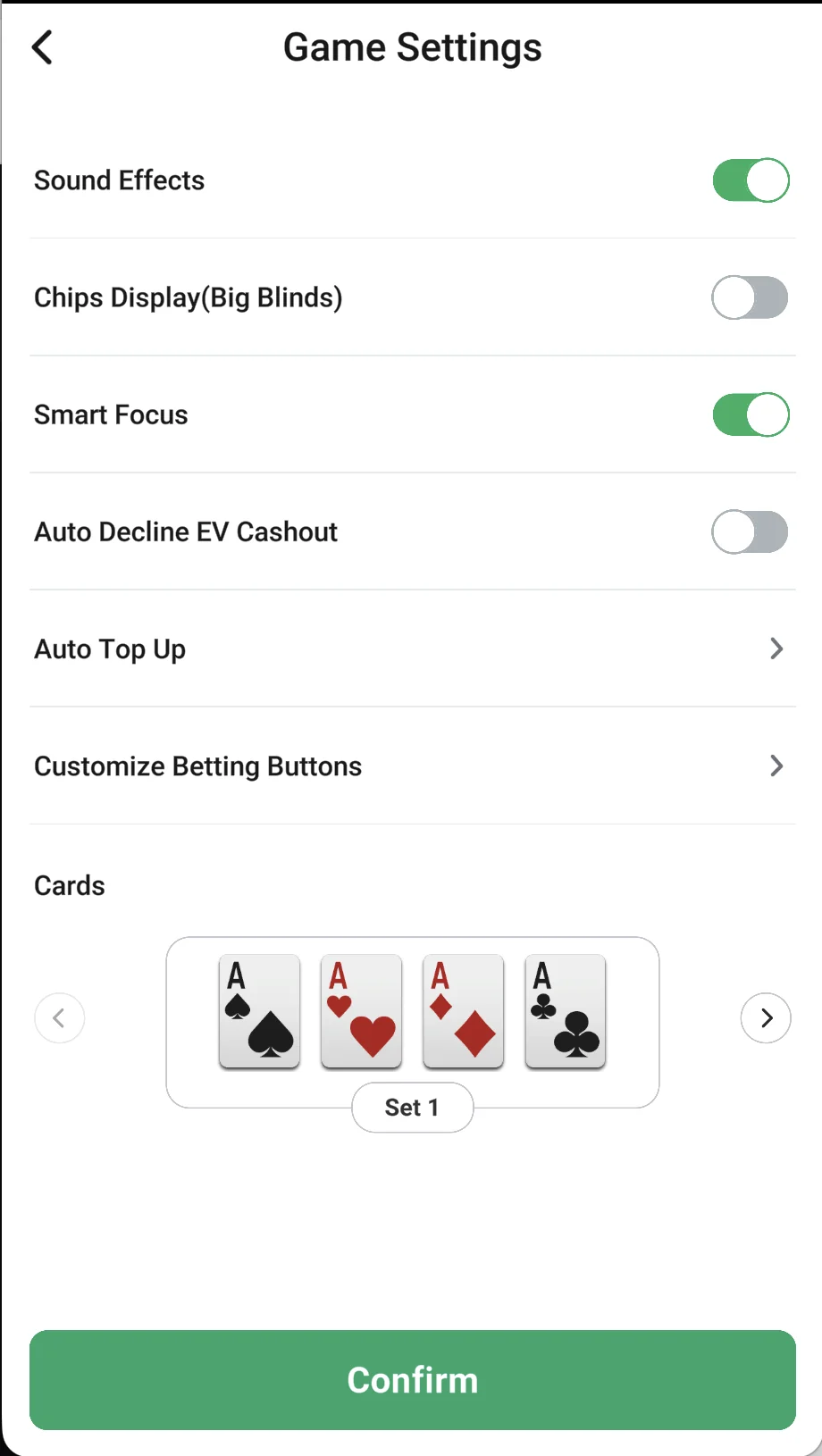
“Game Settings” is the main thing to open before your first hand. The settings apply only to you and are saved with the “Confirm” button at the bottom of the screen.
Sound EffectsTable sounds: dealing, bets and the alert that it’s your turn. Turn them off if you’re multi-tabling or playing somewhere quiet.
Display chips in BBShow stacks and bets in big blinds instead of chips. It makes stacks and pot sizes easy to compare at any stakes — many players turn this on right away.
Smart FocusHelps you not miss your turn when several tables are open: the app shifts focus to the table where you need to make a decision. Useful when playing 2–4 tables.
Auto-decline EV CashoutWhen on, EV Cashout offers in all-in spots are declined automatically — the hand is always played out. Leave it off if you want to decide each time yourself.
Auto Top-upAutomatic rebuy: the app tops your stack back up to the chosen level whenever it drops below it. Handy for always playing a full stack, but keep an eye on your club balance.
Customize Bet ButtonsSet your own quick bet sizes (fractions of the pot or BB) so you can bet in one tap without the slider.
“Game Settings” with the classic card style (Set 1)
Card Style: Which Deck to Choose
In the “Cards” block, use the arrows to browse deck sets. Set 1 is classic cards on a white background with two suit colors. Set 3 is a four-color deck: spades black, hearts red, diamonds blue, clubs green. A four-color deck lowers the risk of misreading suits — especially important in Omaha, where you hold 4–6 cards and flush draws come up constantly.
Set 1 — classic two-color cardsSet 3 — four-color deck
My Tournaments: Player Stats
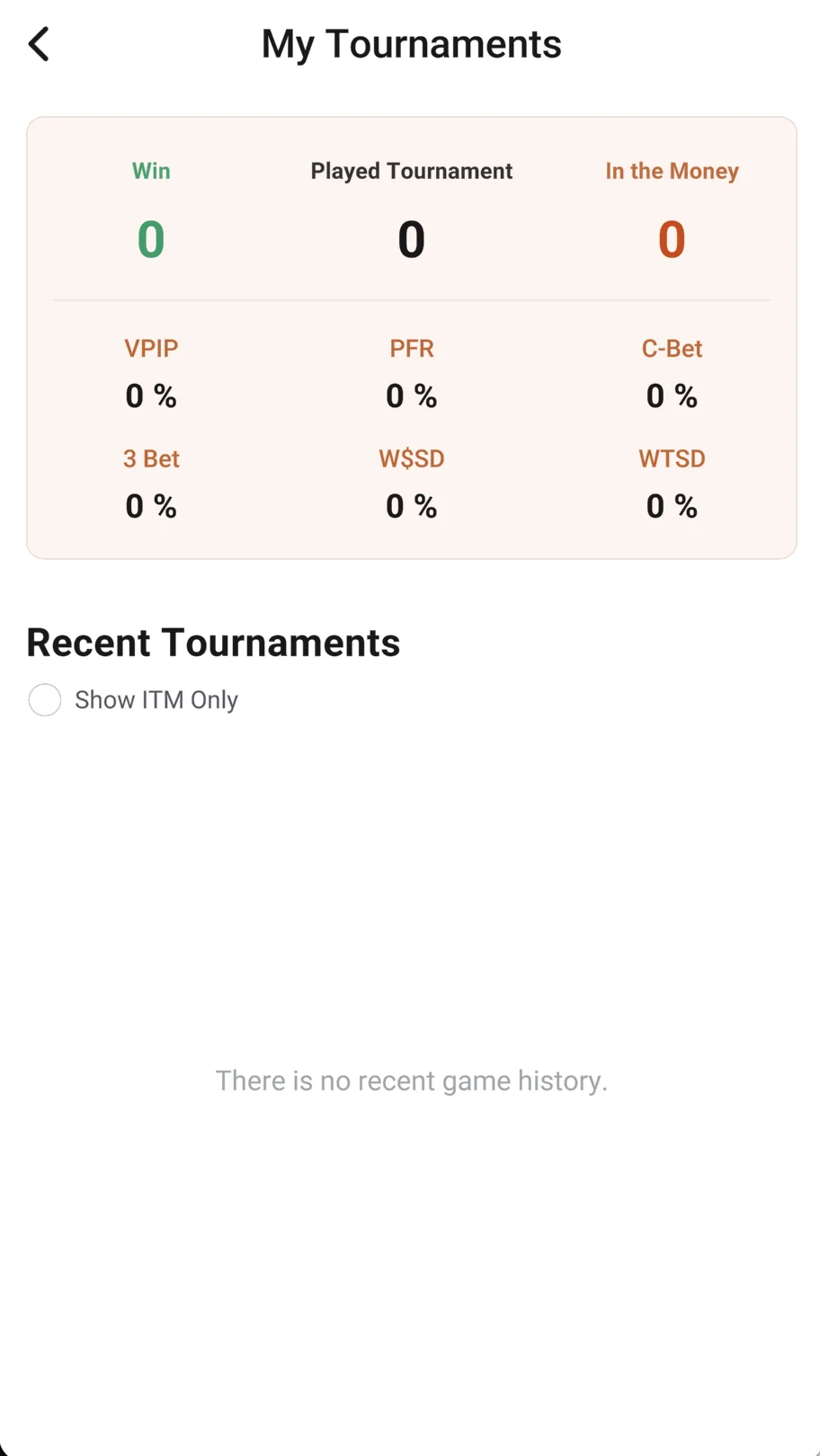
The “My Tournaments” section is a summary of your tournaments: how many you’ve played, how many you’ve won and how many times you’ve cashed. Below is a list of recent tournaments; the “Show ITM only” checkbox leaves just the ones where you finished in the money.
Stat
What it means
VPIP
How often you voluntarily put chips in preflop
PFR
How often you raise preflop
C-Bet
How often you bet the flop after raising preflop
3 Bet
How often you re-raise preflop
WTSD
How often you go to showdown
W$SD
How often you win at showdown
“My Tournaments”: wins, tournaments played, prizes and stats
Detailed stats, graphs and hand replays are under PokerCraft, which has its own section: PokerCraft and Smart HUD. What these stats mean and which values are considered normal is explained in our glossary of poker terms.
Inbox: Club and System Messages
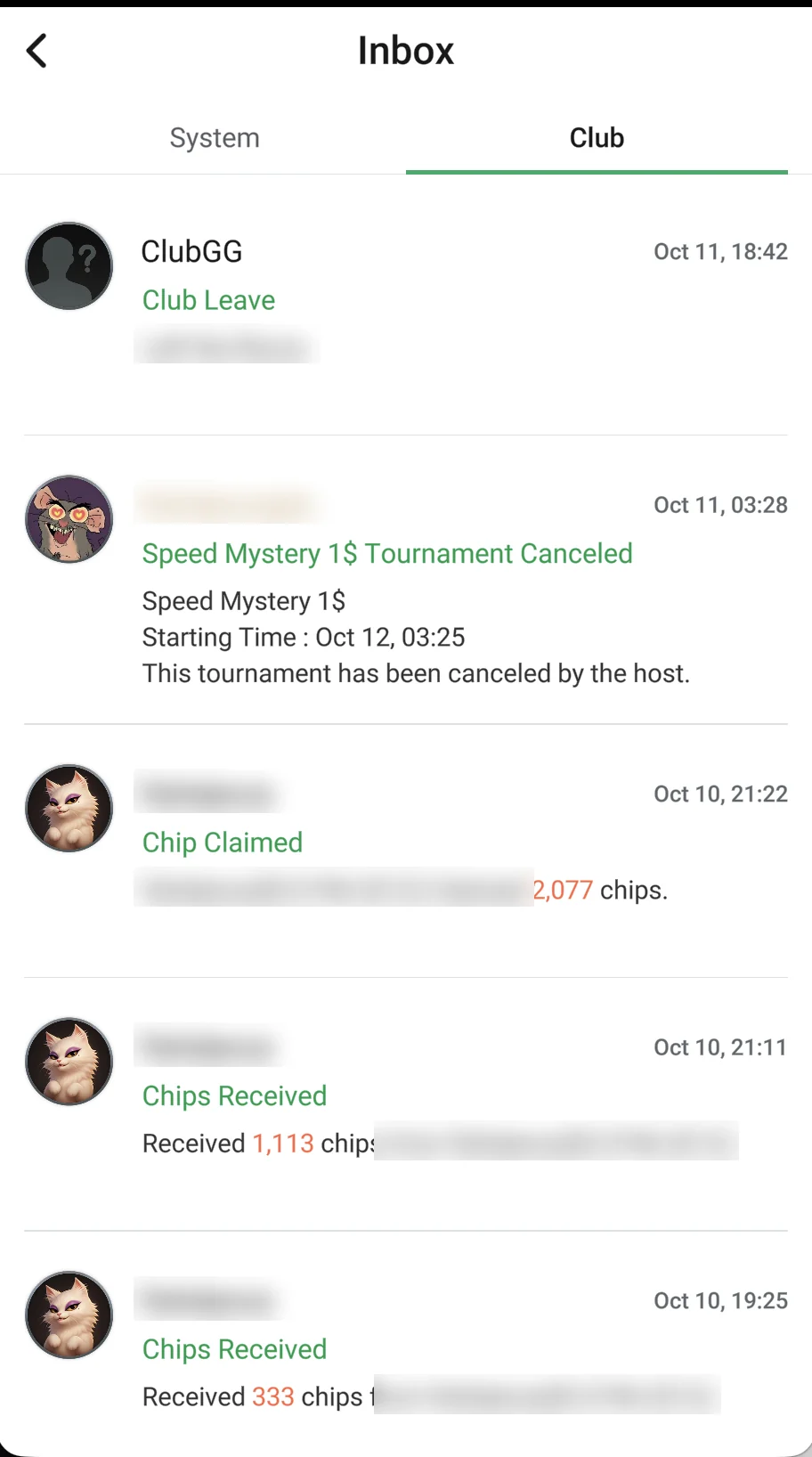
“Inbox” is your notification log. The “System” tab has messages from ClubGG itself (updates, promotions). The “Club” tab shows everything that happens in your clubs:
Chips ReceivedYour agent credited chips to you — it shows how many and from whom. Check it against the amount you paid.
Chips RequestedA request to cash out or return chips — confirmation that the agent can see it.
Tournament CancelledThe organizer cancelled a club tournament; the buy-in is usually returned to your club balance.
Left ClubYou left the club or were removed from it.
Your inbox is your transaction log: if there’s ever a dispute over chips, this is where you get the time and amount of the credit.
The “Club” tab: chips received and requested, tournament cancelled, left club
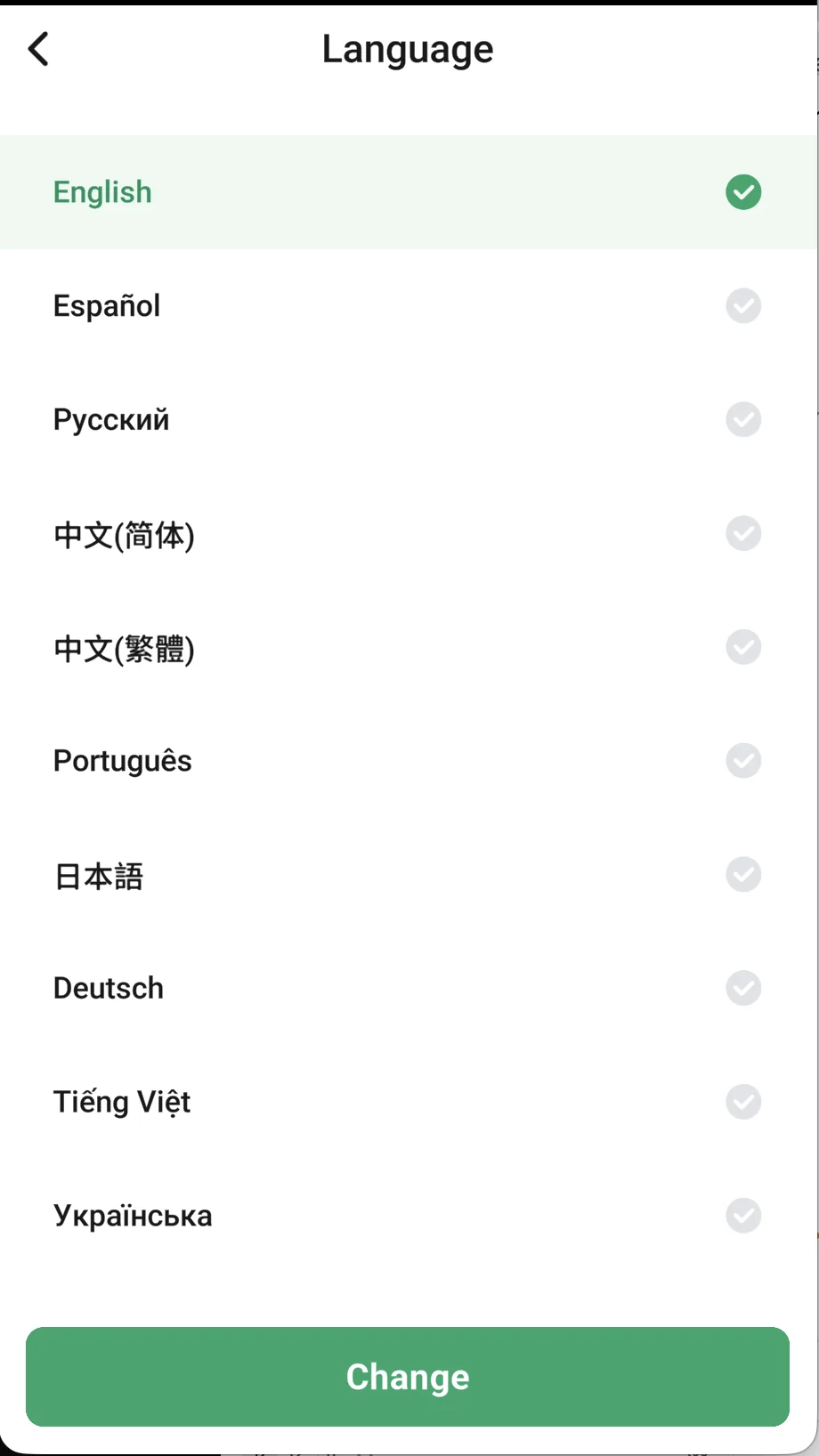
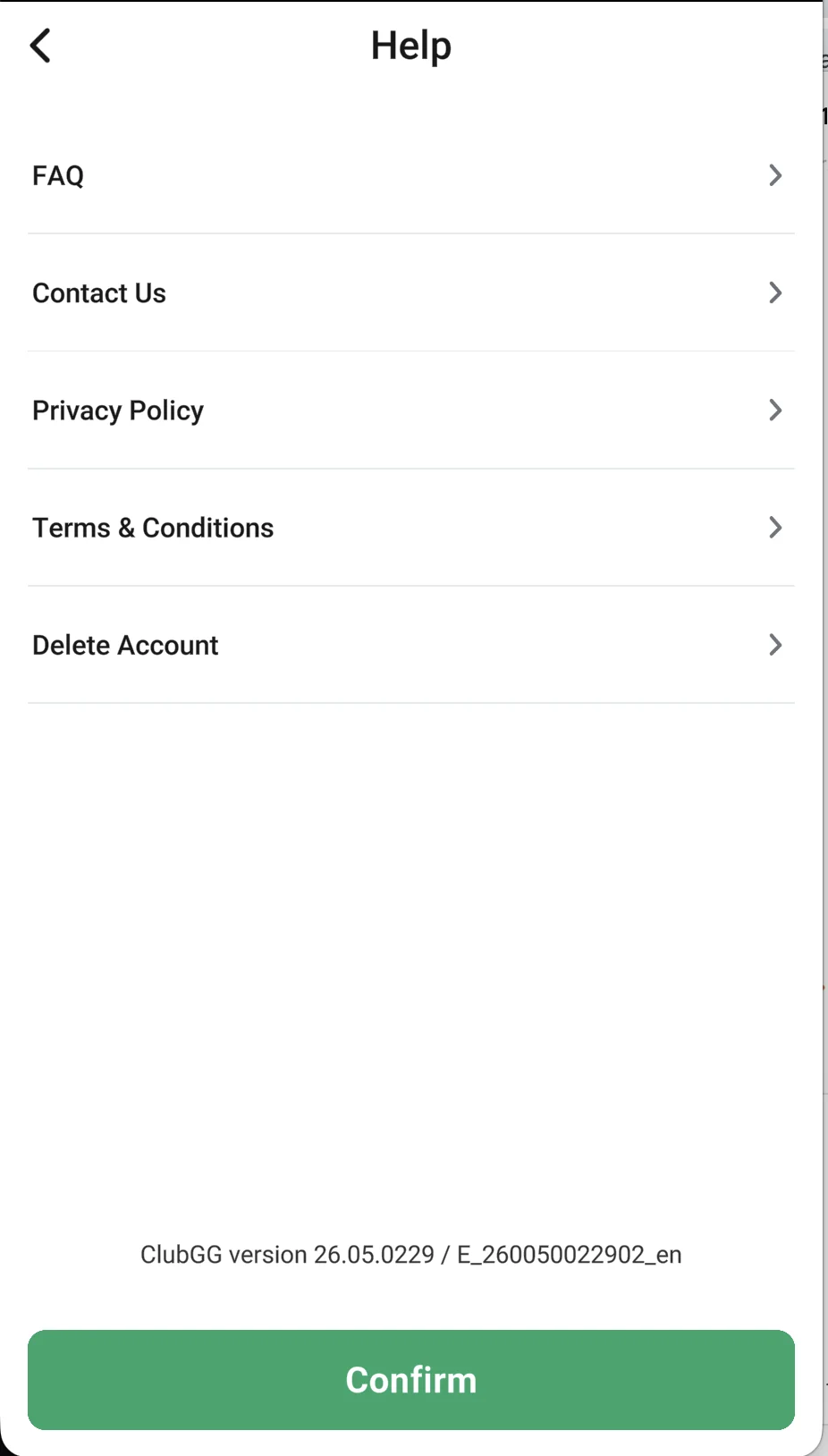
Under “Language” you choose the interface language — options include English and Russian, plus Chinese (Simplified and Traditional), Portuguese, Japanese, German, Vietnamese, Ukrainian, Indonesian (Bahasa), Turkish and more. Pick a language and tap “Change”. “Help” opens ClubGG support — contact them about problems with the app and your account. Questions about chips, deposits and cashouts are handled by your club’s agent, not support.